AcademeConnect Developer Guide
Acknowledgements
- The UI color palette was taken from the Notion application
- Note feature, Reminder feature, UI and some content for User guide and Developer guide were generated using Co-pilot
- Use case UC06 was generated by Google Gemini with some modifications.
Setting up, getting started
Refer to the guide Setting up and getting started.
Design
Architecture
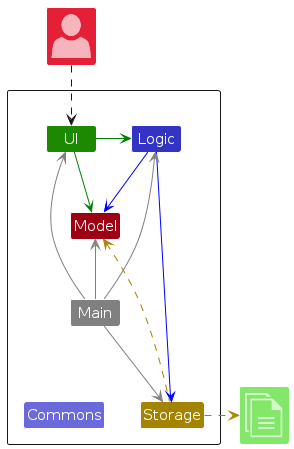
The Architecture Diagram given above explains the high-level design of the App.
Given below is a quick overview of main components and how they interact with each other.
Main components of the architecture
Main (consisting of classes Main and MainApp) is in charge of the app launch and shut down.
- At app launch, it initializes the other components in the correct sequence, and connects them up with each other.
- At shut down, it shuts down the other components and invokes cleanup methods where necessary.
The bulk of the app's work is done by the following four components:
UI: The UI of the App.Logic: The command executor.Model: Holds the data of the App in memory.Storage: Reads data from, and writes data to, the hard disk.
Commons represents a collection of classes used by multiple other components.
How the architecture components interact with each other
The Sequence Diagram below shows how the components interact with each other for the scenario where the user issues the command delete 1.
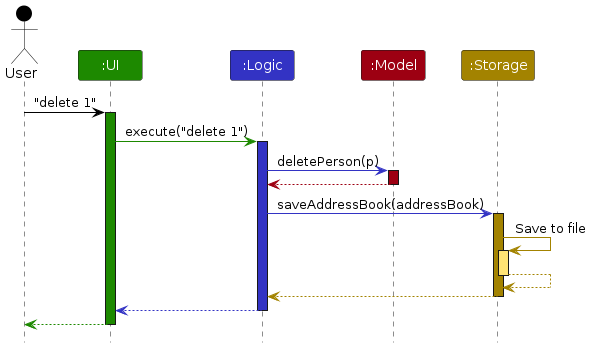
Note: When a person with reminders is deleted, all associated reminders are automatically deleted to maintain referential integrity.
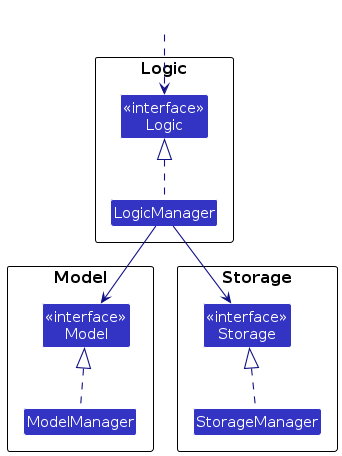
Each of the four main components (also shown in the diagram above),
- defines its API in an
interfacewith the same name as the Component. - implements its functionality using a concrete
{Component Name}Managerclass (which follows the corresponding APIinterfacementioned in the previous point.
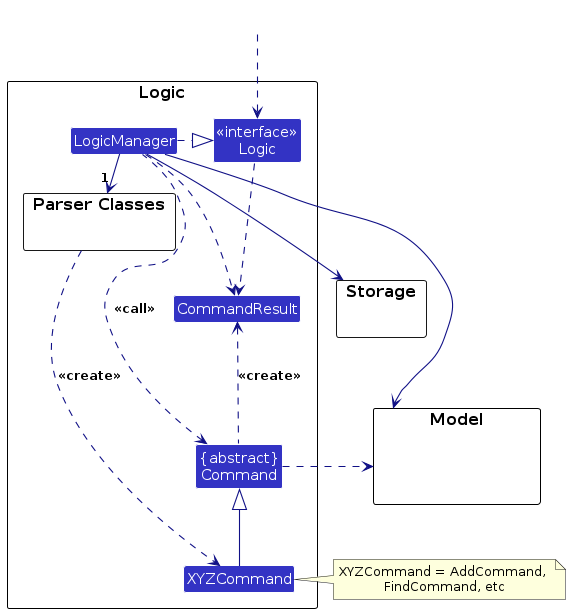
For example, the Logic component defines its API in the Logic.java interface and implements its functionality using the LogicManager.java class which follows the Logic interface. Other components interact with a given component through its interface rather than the concrete class (reason: to prevent outside component's being coupled to the implementation of a component), as illustrated in the (partial) class diagram below.
The sections below give more details of each component.
UI component
The API of this component is specified in Ui.java
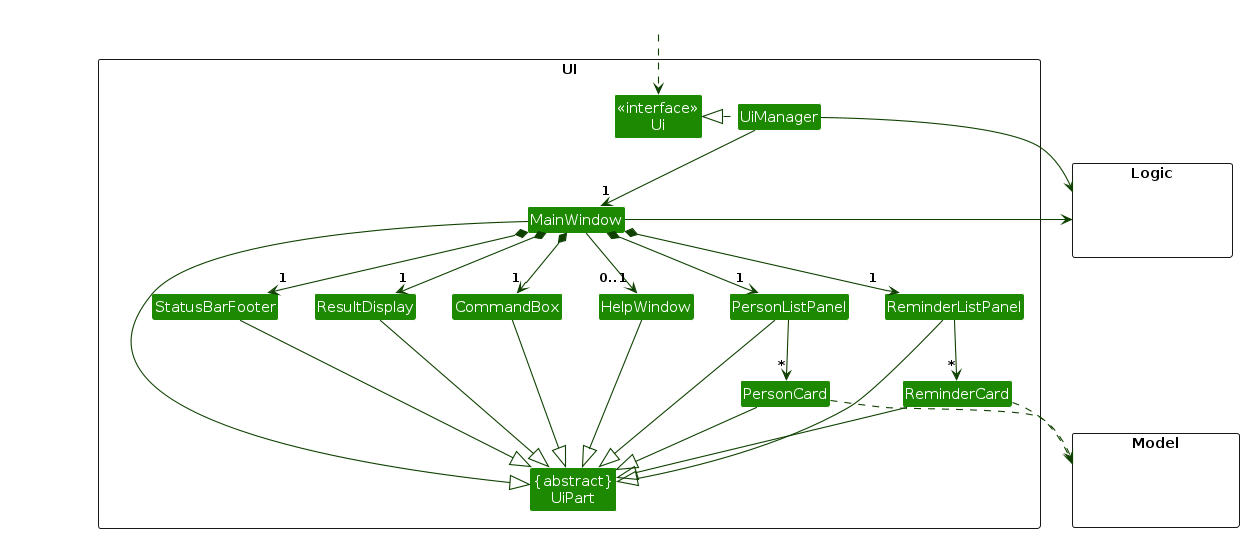
The UI consists of a MainWindow that is made up of parts e.g.CommandBox, ResultDisplay, PersonListPanel, StatusBarFooter etc. All these, including the MainWindow, inherit from the abstract UiPart class which captures the commonalities between classes that represent parts of the visible GUI.
The UI component uses the JavaFx UI framework. The layout of these UI parts are defined in matching .fxml files that are in the src/main/resources/view folder. For example, the layout of the MainWindow is specified in MainWindow.fxml
The UI component,
- executes user commands using the
Logiccomponent. - listens for changes to
Modeldata so that the UI can be updated with the modified data. - keeps a reference to the
Logiccomponent, because theUIrelies on theLogicto execute commands. - depends on some classes in the
Modelcomponent, as it displaysPersonandReminderobjects residing in theModel.
Logic component
API : Logic.java
Here's a (partial) class diagram of the Logic component:
The sequence diagram below illustrates the interactions within the Logic component, taking execute("delete 1") API call as an example.
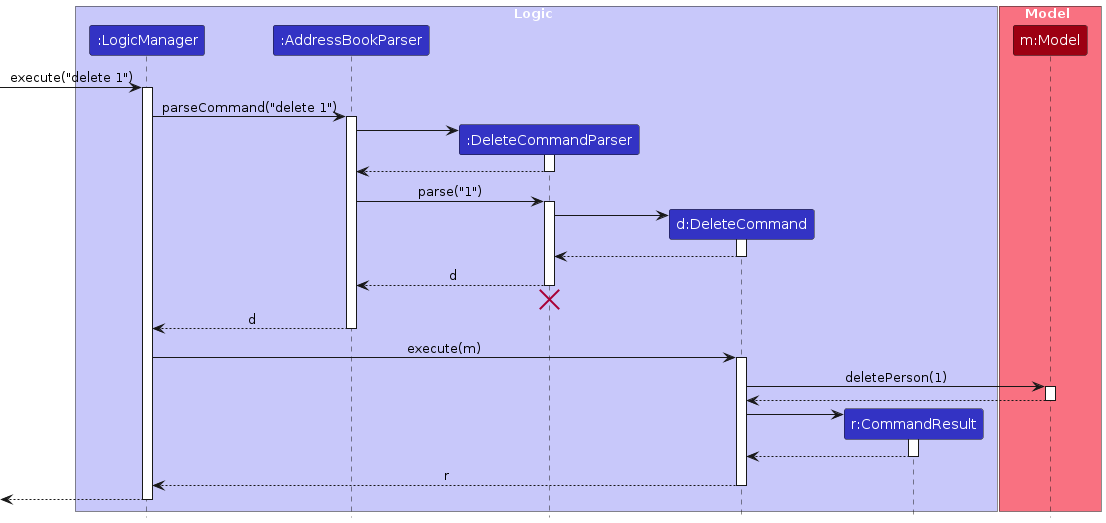
Note: The lifeline for DeleteCommandParser should end at the destroy marker (X) but due to a limitation of PlantUML, the lifeline continues till the end of diagram.
How the Logic component works:
- When
Logicis called upon to execute a command, it is passed to anAddressBookParserobject which in turn creates a parser that matches the command (e.g.,DeleteCommandParser) and uses it to parse the command. - This results in a
Commandobject (more precisely, an object of one of its subclasses e.g.,DeleteCommand) which is executed by theLogicManager. - The command can communicate with the
Modelwhen it is executed (e.g. to delete a person).
Note that although this is shown as a single step in the diagram above (for simplicity), in the code it can take several interactions (between the command object and theModel) to achieve. - The result of the command execution is encapsulated as a
CommandResultobject which is returned back fromLogic.
Here are the other classes in Logic (omitted from the class diagram above) that are used for parsing a user command:
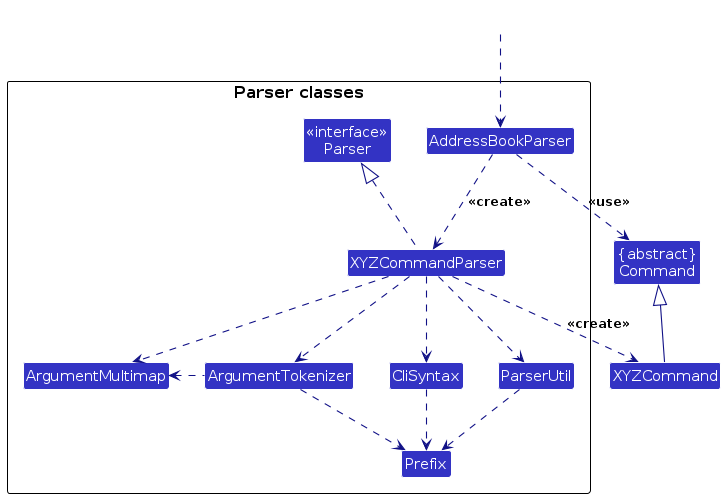
How the parsing works:
- When called upon to parse a user command, the
AddressBookParserclass creates anXYZCommandParser(XYZis a placeholder for the specific command name e.g.,AddCommandParser) which uses the other classes shown above to parse the user command and create aXYZCommandobject (e.g.,AddCommand) which theAddressBookParserreturns back as aCommandobject. - All
XYZCommandParserclasses (e.g.,AddCommandParser,DeleteCommandParser, ...) inherit from theParserinterface so that they can be treated similarly where possible e.g, during testing.
Model component
API : Model.java
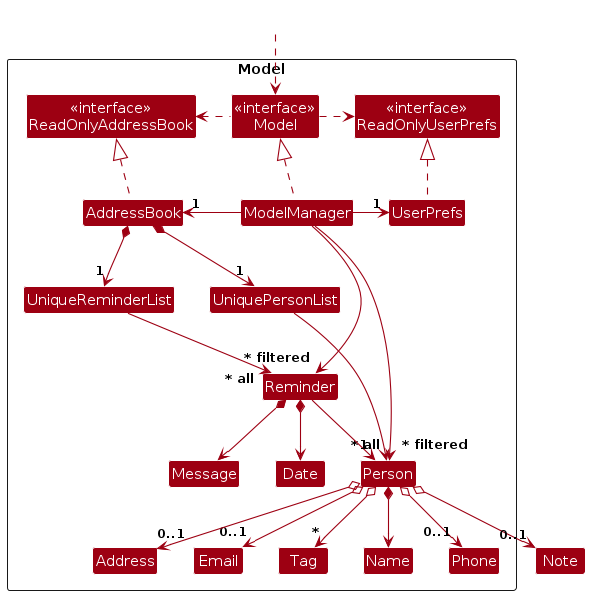
The Model component,
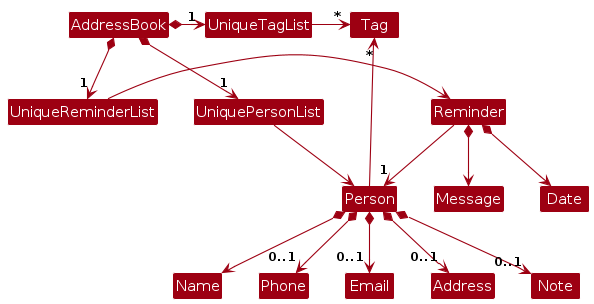
- stores the address book data i.e., all
Personobjects (which are contained in aUniquePersonListobject) and allReminderobjects (which are contained in aUniqueReminderListobject). - stores the currently 'selected'
Personobjects (e.g., results of a search query) as a separate filtered list which is exposed to outsiders as an unmodifiableObservableList<Person>that can be 'observed' e.g. the UI can be bound to this list so that the UI automatically updates when the data in the list change. - stores the currently 'selected'
Reminderobjects (e.g., upcoming reminders) as a separate filtered list which is exposed to outsiders as an unmodifiableObservableList<Reminder>that can be 'observed' e.g. the UI can be bound to this list so that the UI automatically updates when the data in the list change. - stores a
UserPrefobject that represents the user's preferences. This is exposed to the outside as aReadOnlyUserPrefobjects. - does not depend on any of the other three components (as the
Modelrepresents data entities of the domain, they should make sense on their own without depending on other components)
Note: An alternative (arguably, a more OOP) model is given below. It has a Tag list in the AddressBook, which Person references. This allows AddressBook to only require one Tag object per unique tag, instead of each Person needing their own Tag objects.
Storage component
API : Storage.java
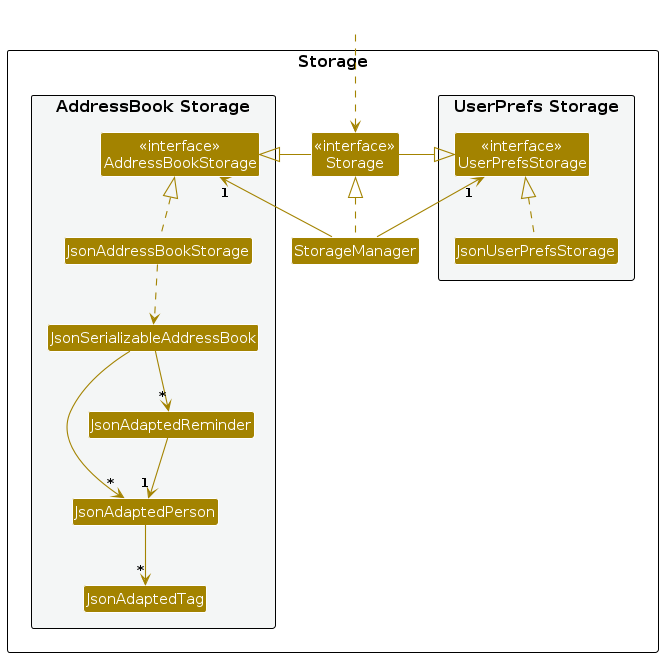
The Storage component,
- can save both address book data, user preference data, and reminder data in JSON format, and read them back into corresponding objects.
- inherits from both
AddressBookStorage,UserPrefStorageandReminderStorage, which means it can be treated as either one (if only the functionality of only one is needed). - depends on some classes in the
Modelcomponent (because theStoragecomponent's job is to save/retrieve objects that belong to theModel)
Common classes
Classes used by multiple components are in the seedu.address.commons package.
Implementation
This section describes some noteworthy details on how certain features are implemented.
Tag Autocomplete Feature
Implementation
The tag autocomplete feature provides intelligent tag suggestions as users type in the command box, helping them quickly reuse existing tags without having to remember exact tag names.
Key Components:
CommandBox- Main UI component that handles user input and manages suggestion displaysuggestionText- JavaFX Text node that displays the autocomplete suggestionTAG_PREFIXES- Array of supported tag prefixes (t/)Model- Provides access to all existing tags in the address book
How it works:
The autocomplete system monitors text input in real-time and follows this workflow:
- Input Detection:
CommandBox.handleTextChanged()is triggered on every keystroke and caret position change - Prefix Recognition: Checks if the current caret position is immediately after a tag prefix (
t/) - Partial Tag Extraction: Extracts the partially-typed tag text between the prefix and the caret
- Tag Matching: Queries all existing tags from the address book and filters for case-insensitive matches
- Suggestion Display: Shows the remaining untyped portion of the best matching tag in blue text
- Acceptance: User presses Tab to accept the suggestion, which completes the tag and moves the caret
Code Flow Example:
When a user types tag 1 t/fri, the system:
- Detects
t/prefix at position before caret - Extracts partial tag
"fri" - Finds matching tag
"friend"in the address book - Displays
"end"in blue after the typed text - On Tab press, replaces
"fri"with"friend"and positions caret after it
Design Considerations:
Suggestion Visibility: Suggestions only appear when the caret is positioned after a tag prefix and no space has been typed yet. This prevents suggestions from appearing in inappropriate contexts.
Tab Key Handling: The Tab key is consumed to prevent focus traversal (which would move focus away from the command box). This ensures a smooth user experience where Tab always means "accept suggestion".
Performance: Tag queries are performed on every keystroke. For typical use cases (up to 1000 contacts with ~5-10 tags each), this remains performant. The implementation uses Java streams for efficient filtering.
Case Insensitivity: Matching is case-insensitive to maximize user convenience. A user typing
aiwill match bothAIandai.
Note Feature
Implementation
The note feature is facilitated by NoteEditView, NoteCommand, and MainWindow. It provides a dedicated full-screen editor for adding and modifying detailed notes for contacts. The feature operates through a modal editing mode that overlays the person list and integrates with the keyboard-based workflow.
Key Components:
NoteCommand- Command class that initiates note editing mode for a specified personNoteCommandParser- Parser that validates and extracts the person index from user inputNoteEditView- JavaFX UI component that displays the note editor with a TextAreaCommandResult- Extended to includeshowNoteEditflag andtargetPersonIndexfor note editing modeMainWindow- Manages view switching between person list and note editor, handles Esc key detection and save logicLogic- Interface extended withsetPersonNote()method for persisting notes to storage
How it works:
These operations are coordinated through the CommandResult object, which signals when note editing mode should be activated by setting showNoteEdit=true and providing the targetPersonIndex.
Given below is an example usage scenario and how the note editing mechanism behaves at each step.
- Command Parsing:
AddressBookParserroutes "note" commands toNoteCommandParser - Index Validation: Parser extracts and validates the person index using
ParserUtil.parseIndex() - Command Execution:
NoteCommand.execute()retrieves the target person and returns aCommandResultwithshowNoteEdit=trueand thetargetPersonIndex - View Switching:
MainWindowdetects theshowNoteEditflag and callsshowNoteEditView() - Note Loading:
NoteEditView.setPerson()loads the person's existing note (if any) into the TextArea and positions the caret at the end - User Editing: User types in the TextArea, with a listener preventing input beyond 5000 characters
- Esc Key Handling: When user presses Esc while in note edit mode:
- First press: If TextArea is focused, saves the note via
saveCurrentNote()and shifts focus to command box - Second press: If command box is focused, returns focus to TextArea
- First press: If TextArea is focused, saves the note via
- Note Persistence:
saveCurrentNote()retrieves content vianoteEditView.getNoteContent()and callslogic.setPersonNote()to update the model and storage
Code Flow Example:
When a user types note 1 and edits a note, the system:
AddressBookParsercreatesNoteCommandParserand callsparse("1")- Parser extracts index
1and createsNoteCommand(Index.fromOneBased(1)) NoteCommand.execute()retrieves Person at index 1 from the filtered list- Returns
CommandResultwithshowNoteEdit=trueandtargetPersonIndex=1
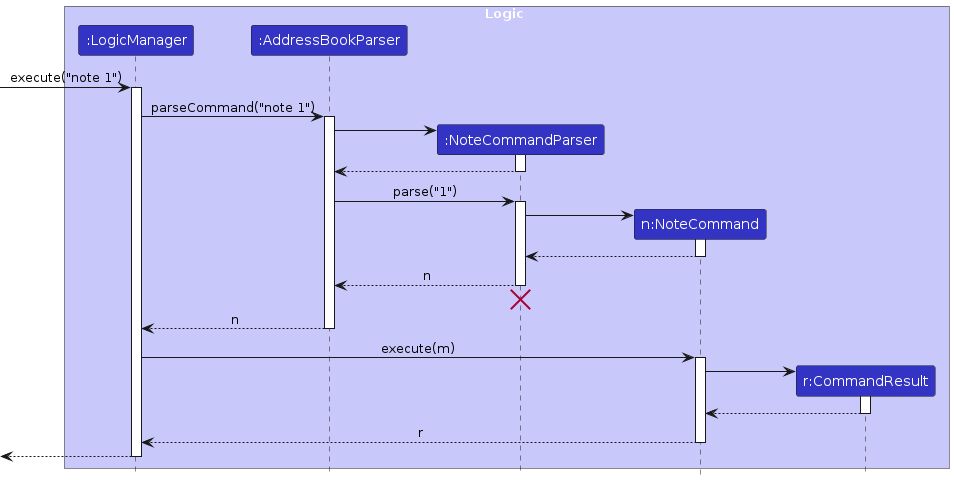
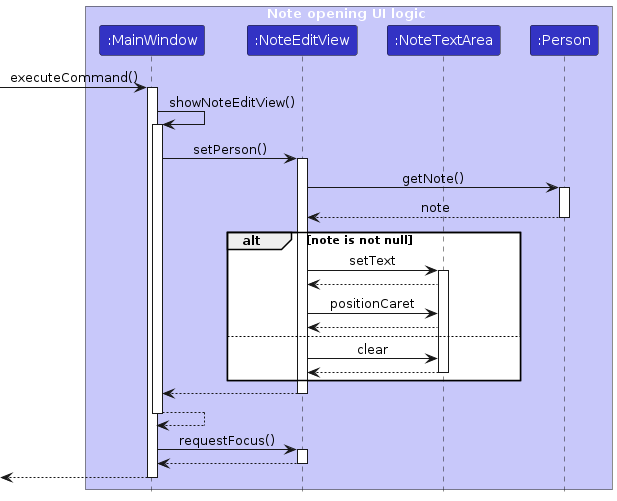
MainWindow.executeCommand()detects theshowNoteEditflag- Calls
showNoteEditView(Index.fromOneBased(1))which:- Retrieves the Person from the filtered list
- Clears the person list panel and adds
NoteEditViewOR CallsnoteEditView.setPerson(person)to load existing note content - Requests focus on the TextArea
- Sets
isNoteEditMode = trueand updates header to "Notes"
- User edits the note text (character limit enforced by TextArea listener)
- When user presses Esc key:
MainWindow.handleEscapeKeyPress()is triggered by the keyboard event filter- Checks if
isNoteEditMode=trueand consumes the event - Calls
handleEscapeFromTextArea()which:- Invokes
saveCurrentNote()to retrieve note content vianoteEditView.getNoteContent() - Creates new
Noteobject - Calls
logic.setPersonNote(person, note)which updates model and saves to storage - Shifts focus to command box via
focusCommandTextField()
- Invokes
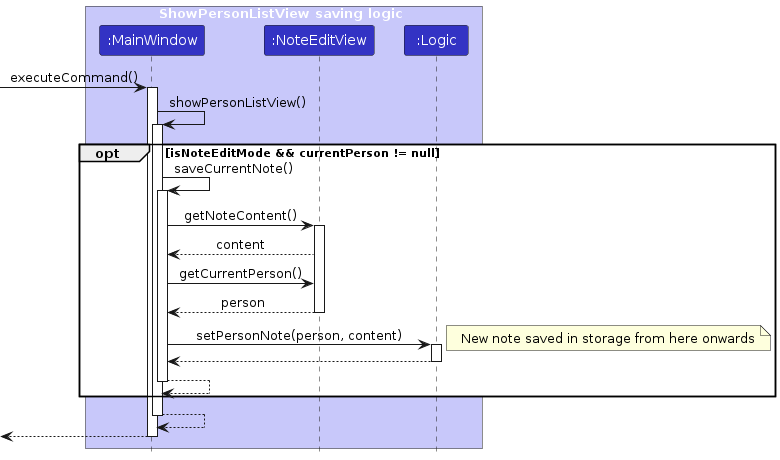
- User can press Esc again to return focus to TextArea, or execute any command to exit note edit mode
Design Considerations:
Esc Key Save Mechanism: The implementation uses the Esc key to trigger saving, which provides a quick keyboard-based workflow for CLI-focused users. The two-state behavior (save and shift focus on first press, return focus on second press) allows users to quickly switch between editing notes and entering commands without leaving note edit mode. This is more efficient than requiring users to execute another command to save and exit.
Auto-Save vs Manual Save: Notes are only saved when the user explicitly presses Esc, giving users control over when their edits are persisted. This prevents unnecessary disk writes on every keystroke while still providing a quick save mechanism. However, this means users must remember to press Esc before closing the application, as unsaved notes will be lost.
Character Limit Enforcement: The 5000 character limit is enforced in real-time by a JavaFX listener on the TextArea's text property. When new text would exceed the limit, the listener reverts to the old value, providing immediate feedback. This approach prevents users from typing beyond the limit rather than showing an error after the fact.
Caret Positioning: When opening an existing note, the caret is positioned at the end of the text rather than the beginning. This allows users to quickly append to existing notes, which is the most common use case.
Reminder Feature
Implementation
The reminder feature allows users to set, view, and manage time-sensitive follow-ups associated with their contacts. The core functionality revolves around filtering reminders to ensure only relevant, upcoming tasks are displayed to the user.
Key Components:
Reminder- The data class for a reminder, containing aPerson,Date,Message, and a completion status.UniqueReminderList- Manages the list of all reminders, ensuring no duplicates.ReminderAddCommand,ReminderListCommand,ReminderMarkCommand- Command classes that handle the logic for adding, listing, and marking reminders.ReminderPanel- The UI component in theMainWindowthat displays the list of upcoming reminders.
How it works:
The reminder list command is the central part of this feature's user experience. When executed, it applies a predicate to the Model's master reminder list to filter for reminders that meet two conditions:
- The reminder's date is in the future (or today).
- The reminder has not been marked as complete.
This filtered list is then displayed in the ReminderPanel. This design ensures the user is only presented with actionable, relevant information.
Code Flow for reminder list:
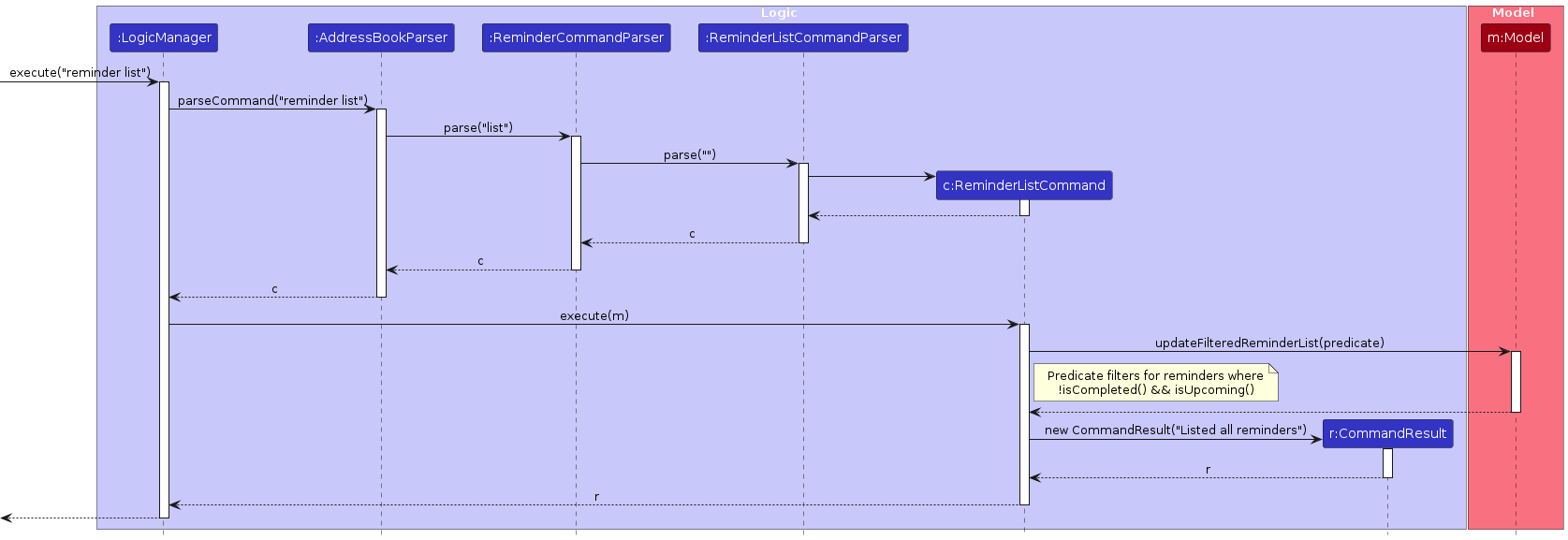
- The
LogicManagerexecutes theReminderListCommand. - The command calls
model.updateFilteredReminderList()with a predicate that checks!reminder.isCompleted() && reminder.isUpcoming(). - The
Modelupdates its internalfilteredReminderList.
Design Considerations:
- Default View is "Upcoming": The decision to only show upcoming reminders by default was made to keep the UI clean and focused on actionable tasks, preventing clutter from past or completed items.
- Referential Integrity: When a
Personis deleted, a cascading delete is performed on theUniqueReminderListto remove all reminders associated with that person, preventing orphaned data.
Documentation, logging, testing, configuration, dev-ops
Appendix: Requirements
Product scope
Target user profile:
- need to manage a significant network of professional contacts in their research field
- want to track detailed information about fellow researchers, collaborators, and potential research partners
- prefer desktop apps over other types
- can type fast
- prefers typing to mouse interactions
- are reasonably comfortable using CLI apps
- need to organize contacts by research interests, publications, and professional relationships
Value proposition: AcademeConnect solves the problem of managing a fragmented research network by providing a centralized hub to organize contacts, track professional relationships, and find collaborators faster than a typical mouse/GUI driven app. It helps researchers effortlessly manage their academic workflow by maintaining key details about each contact including research specialties, conference interactions, and collaboration history.
User stories
Priorities: High (must have) - * * *, Medium (nice to have) - * *, Low (unlikely to have) - *
| Priority | As a … | I want to … | So that I can… |
|---|---|---|---|
* * * | user | use the CLI to add a contact | keep track of contacts in the list and their associated details |
* * * | user | delete a contact | keep the contacts list updated and clutter-free |
* * * | user | view a list of contacts | quickly see the most important information about each contact at a glance |
* * * | user | edit a contact in place | update information about my network efficiently |
* * * | user with a large list of contacts | quickly search for a specific person by name | access their information without scrolling through my entire list |
* * | user | add custom tags to a contact's profile | categorize them by their specific research interests or specialties |
* * | user | add detailed notes about my interactions with a contact | remember the context of our conversations and refer to them later |
* * | user looking for a collaborator | search for contacts based on their research interest tags | easily find people with relevant expertise |
* * | new user | follow a guided tour of the basic features | quickly learn how to use the app without having to read a manual |
* * | experienced user | use shortcut commands | perform common tasks like adding a contact or searching more efficiently |
* * | researcher | link contacts to specific publications | track who collaborated on which research |
* | user with a strong network | visualize the connections between my contacts | see who knows whom |
* | long-term user | archive contacts that are no longer active | keep my primary contact list clutter-free and relevant |
* | user with a large list of contacts | set reminders for conversational follow-ups | not lose touch with important contacts |
* | user | get notified about any contact's recent activity | stay up to date with my network's contributions |
* | user looking for collaborators | receive suggestions to collaborate with new researchers | make it easier to network with unknown researchers |
* | researcher | connect contacts to grant applications | see their roles in funding projects |
* | researcher | log which conferences I attended with a contact | remember where we met |
* | researcher | view a timeline of interactions with a contact | recall the history of our collaboration |
Use cases
(For all use cases below, the System is the AcademeConnect and the Actor is the user, unless specified otherwise)
Use case: Add a contact with research interest tags
MSS
User requests to add a new contact with basic details.
AcademeConnect prompts for research interest tags.
User enters one or more research interest tags.
AcademeConnect adds the contact with the specified tags and displays a success message.
Use case ends.
Extensions
1a. User enters invalid or incomplete contact details
1a1. AcademeConnect shows an error message indicating which field is invalid.
1a2. User enters corrected details. Steps 1a1-1a2 are repeated until the data entered is correct.
Use case resumes from step 2.
3a. User enters no tags
3a1. AcademeConnect adds the contact without tags.
Use case ends.
*a. At any time, User chooses to cancel adding the contact
*a1. AcademeConnect discards the input and returns to the main screen.
Use case ends.
Use case: UC02 - Search for potential collaborators by research interest
MSS
User requests to search for contacts by research interest tag.
AcademeConnect requests for the specific research interest tag.
User enters the research interest tag.
AcademeConnect displays a list of contacts with matching research interest tags.
Use case ends.
Extensions
3a. The entered tag does not match any existing contacts
3a1. AcademeConnect displays a message indicating no matches found.
Use case ends.
3b. User enters multiple tags.
3b1. AcademeConnect displays contacts matching any of the entered tags.
Use case resumes from step 4.
4a. User requests to view detailed information about a specific contact from the results.
4a1. AcademeConnect displays the full contact details including all tags and notes.
Use case ends.
Use case: UC03 - Delete a contact
MSS
User requests to list contacts.
AcademeConnect shows a list of contacts.
User requests to delete a specific contact in the list.
AcademeConnect deletes the contact.
Use case ends.
Extensions
2a. The list is empty.
Use case ends.
3a. The given index is invalid.
3a1. AcademeConnect shows an error message.
Use case resumes at step 2.
Use case: UC04 - Add or edit notes for a contact
MSS
User requests to list contacts.
AcademeConnect shows a list of contacts.
User requests to open the note editor for a specific contact.
AcademeConnect displays the note editor with any existing note content.
User types or edits the note content in the text area.
User presses Esc key to save the note.
AcademeConnect saves the note and shifts focus to the command box.
Use case ends.
Extensions
2a. The list is empty.
Use case ends.
3a. The given index is invalid.
3a1. AcademeConnect shows an error message.
Use case resumes at step 2.
5a. User types more than 5000 characters.
5a1. AcademeConnect prevents additional characters from being entered.
5a2. User edits the content to stay within the limit.
Use case resumes at step 6.
6a. User presses Esc key again while command box is focused.
6a1. AcademeConnect returns focus to the note text area.
6a2. User continues editing the note.
Use case resumes at step 5.
Use case: UC05 - View notes for a contact
MSS
User requests to list contacts.
AcademeConnect shows a list of contacts.
User requests to open the note editor for a specific contact.
AcademeConnect displays the note editor with the existing note content for that contact.
User reads the note content.
User presses Esc key to return focus to command box.
User executes a command to exit note edit mode.
Use case ends.
Extensions
2a. The list is empty.
Use case ends.
3a. The given index is invalid.
3a1. AcademeConnect shows an error message.
Use case resumes at step 2.
4a. The contact has no existing note.
4a1. AcademeConnect displays an empty note editor.
Use case ends.
Use case: UC06 - Add a reminder for a contact
MSS
User requests to add a reminder for a specific contact with a date and message.
AcademeConnect validates the contact, date, and message.
AcademeConnect saves the new reminder.
AcademeConnect displays a success message and shows the new reminder in the "Upcoming Reminders" panel.
Use case ends.
Extensions
- 2a. The specified contact index is invalid.
- 2a1. AcademeConnect shows an error message indicating the index is out of bounds. Use case ends.
- 2b. The specified contact name does not exist.
- 2b1. AcademeConnect shows an error message indicating the person was not found. Use case ends.
- 2c. The date format is invalid.
- 2c1. AcademeConnect shows an error message explaining the correct date format. Use case ends.
- 2d. The reminder is a duplicate (same person, date, and message).
- 2d1. AcademeConnect shows an error message indicating a duplicate reminder exists. Use case ends.
Non-Functional Requirements
- Should work on any mainstream OS as long as it has Java 17 or above installed.
- Should be able to hold up to 1000 contacts without a noticeable sluggishness in performance for typical usage.
- A user with above average typing speed for regular English text (i.e. not code, not system admin commands) should be able to accomplish most of the tasks faster using commands than using the mouse.
- The system should not lose any contact data during normal operation. All changes should be automatically saved to prevent data loss.
- New users should be able to add their first contact within 5 minutes of opening the application.
- User documentation should be comprehensive enough for a novice computer user to understand all basic features.
- The command-line interface should support standard keyboard shortcuts and provide clear error messages for all user actions.
- Contact information should be stored locally on the user's machine. The system should not transmit any contact data to external servers without explicit user consent.
{More to be added}
Glossary
- Academic Researcher: A person engaged in scholarly research, typically affiliated with a university or research institution, who needs to maintain professional contacts in their field.
- CLI (Command Line Interface): A text-based interface where users interact with the application by typing commands rather than using a mouse or graphical elements.
- Contact: An entry in AcademeConnect representing a fellow researcher or professional connection, containing details such as name, affiliation, research interests, and interaction notes.
- Research Interest Tag: A keyword or label (e.g., #AI ethics, #quantum computing) assigned to a contact to categorize their area of research specialization, enabling quick filtering and search.
- MSS (Main Success Scenario): The most common path of execution in a use case, describing the typical flow of events when everything proceeds without errors.
- Extensions: Alternative paths in a use case that handle errors, special conditions, or optional flows that deviate from the main success scenario.
- Archived Contact: A contact that is no longer active in the user's primary network but is retained in the system for historical reference.
- Custom List: A user-defined grouping of contacts (e.g., "AI collaborators", "Grant reviewers") for flexible organization beyond research interest tags.
Appendix: Instructions for manual testing
Given below are instructions to test the app manually.
Note: These instructions only provide a starting point for testers to work on; testers are expected to do more exploratory testing.
Launch and shutdown
Initial launch
Download the jar file and copy into an empty folder
Double-click the jar file Expected: Shows the GUI with a set of sample contacts. The window size may not be optimum.
Saving window preferences
Resize the window to an optimum size. Move the window to a different location. Close the window.
Re-launch the app by double-clicking the jar file.
Expected: The most recent window size and location is retained.
Deleting a person
Deleting a person while all persons are being shown
Prerequisites: List all persons using the
listcommand. Multiple persons in the list.Test case:
delete 1
Expected: First contact is deleted from the list. Details of the deleted contact shown in the status message. Timestamp in the status bar is updated.Test case:
delete 0
Expected: No person is deleted. Error details shown in the status message. Status bar remains the same.Other incorrect delete commands to try:
delete,delete x,...(where x is larger than the list size)
Expected: Similar to previous.
Adding a person
Adding a person with only required fields
Test case:
add n/John Doe
Expected: Person added with name only. Optional fields (phone, email, address) show as empty in the contact card.Test case:
add n/Dr. Jane Smith-O'Connor p/+6591234567 e/jane@example.com a/NUS, Computing Drive
Expected: Person added with all fields populated. International phone number and special characters in name are handled correctly.Test case:
add n/李明 p/+8613812345678
Expected: Person with non-English name is added successfully.Test case:
add p/12345678
Expected: Error message indicating name is required. No person added.
Listing all persons
- Listing all persons
Prerequisite: Have multiple persons in the address book (including some filtered by a previous find command).
Test case:
list
Expected: All persons in the address book are displayed. Status message shows "Listed all persons".
Editing a person
- Editing a person's details
Prerequisites: List all persons using list. Multiple persons in the list.
Test case:
edit 1 p/91234567 e/newemail@example.com
Expected: First contact's phone and email are updated. Details shown in status message.Test case:
edit 2 t/
Expected: All tags removed from second contact.Test case:
edit 0 n/New Name
Expected: Error message indicating invalid index. No person edited.Test case:
edit 1
Expected: Error message indicating at least one field must be provided. No person edited.
Adding tags to a person
- Adding regular tags
Prerequisites: List all persons. At least one person in the list.
Test case:
tag 1 t/friend t/colleague
Expected: Tags "friend" and "colleague" added to first person. Existing tags are preserved.Test case:
tag 1 rtt/Machine Learning
Expected: Research tag "Machine Learning" added with distinct color.Test case:
tag 1 jtt/Professor
Expected: Job title tag "Professor" added with distinct color.Testing tag autocomplete: Type
tag 1 t/friand press Tab. If "friend" tag exists, it should autocomplete.
Deleting tags from a person
- Deleting specific tags
Prerequisites: Person at index 1 has tags "friend", "colleague", and research tag "AI".
Test case:
tagdel 1 t/friend
Expected: "friend" tag removed from first person. Other tags remain.Test case:
tagdel 1 t/friend t/colleague
Expected: Both "friend" and "colleague" tags removed.Test case:
tagdel 1 rtt/AI
Expected: Research tag "AI" removed.Test case:
tagdel 1 t/nonexistent
Expected: Error message indicating tag does not exist.
Locating persons
Finding by name
Prerequisites: Have persons with names like "John Doe", "Jane Smith", "Alex Yeoh".
Test case:
find John
Expected: Persons with "John" in their name are listed. Status shows number of persons found.Test case:
find john alex
Expected: Persons matching either "john" OR "alex" are listed (case-insensitive).
Finding by tag
Prerequisites: Multiple persons with various tags like "friends", "colleagues".
Test case:
find t/friend
Expected: All persons tagged with "friends" are listed.Test case:
find t/friend t/colleague
Expected: Persons with either tag are listed (OR search).
Finding by note content
Prerequisites: Some persons have notes containing phrases like "Met at conference".
Test case:
find note/Met at conference
Expected: Persons whose notes contain the phrase "Met at conference" are listed.Test case:
find note/xyz123
Expected: No persons found if phrase doesn't exist. Status shows "0 persons listed!".
Invalid find commands
Test case:
find
Expected: Error message indicating invalid format.Test case:
find t/friends note/meeting
Expected: Error message (cannot combine search methods).
Adding or updating a note
Opening note editor and saving
Prerequisites: List all persons. At least one person in the list.
Test case:
note 1
Expected: Note editor opens, replacing person list. Command box shows success message. If person already has a note, it is pre-loaded in editor.Type some text in the editor (e.g., "Met at AI conference 2025"). Press Esc.
Expected: Focus moves to command box. Note is automatically saved.Press Esc again while in command box.
Expected: Focus returns to note editor.While in command box, execute list.
Expected: Person list view restored. Note is saved with most recent changes.
Testing character limit
Prerequisite: Note editor is open for a person.
Attempt to type more than 5000 characters.
Expected: Editor rejects input beyond 5000 characters.
Invalid index
- Test case:
note 0
Expected: Error message indicating invalid index.
- Test case:
Viewing a note
- Viewing a Note
Viewing an existing note Prerequisites: Person at index 1 has a note with content.
Test case:
viewNote 1
Expected: Note content displayed in result area (read-only).Test case:
viewNote 2(person with no note)
Expected: Message indicating person has no note.Test case:
viewNote 0
Expected: Error indicating invalid index.
Deleting a note
- Deleting a person's note
Prerequisites: Person at index 1 has a note.
Test case:
deleteNote 1
Expected: Note deleted. Success message with person details shown.Test case:
deleteNote 1(person with no note)
Expected: Error message indicating no note to delete.Test case:
deleteNote 999
Expected: Error indicating invalid index.
Adding a reminder
Adding reminder by index
Prerequisites: List all persons. Multiple persons in the list.
Test case:
reminder add 1 d/2025-12-31 23:59 m/Submit final report
Expected: Reminder added for first person. Success message shows person name, date, and message. Reminder appears in Upcoming Reminders panel.Test case:
reminder add 2 d/15/12/2025 m/Conference deadline
Expected: Reminder added with date in dd/MM/yyyy format, defaulting to end of day (23:59).
Adding reminder by name
Prerequisites: Person named "John Doe" exists in address book.
Test case:
reminder add n/John Doe d/2025-11-20 10:30 m/Coffee meeting
Expected: Reminder added for "John Doe" (searches entire address book, not just filtered list).Test case:
reminder add n/Nonexistent Person d/2025-12-01 m/Test
Expected: Error message indicating person not found.
Testing past date reminder
- Test case:
reminder add 1 d/2020-01-01 m/Old reminder
Expected: Reminder is saved but shows warning about past date. It will NOT appear in Upcoming Reminders panel.
- Test case:
Duplicate reminder
Prerequisites: Reminder already exists for person at index 1 with date "2025-12-25" and message "Test".
Test case:
reminder add 1 d/2025-12-25 m/Test
Expected: Error message indicating duplicate reminder.
Invalid formats
Test case:
reminder add 1 d/invalid m/Test
Expected: Error indicating invalid date format.Test case:
reminder add 999 d/2025-12-31 m/Test
Expected: Error indicating invalid person index.
Listing Upcoming reminders
- Listing all upcoming reminders
Prerequisites: Have reminders with future dates and some marked as complete or with past dates.
Test case:
reminder list
Expected: All incomplete reminders with future/today dates displayed in Upcoming Reminders panel. Status shows "Listed all reminders". Completed and past reminders are hidden.
Marking a reminder as complete
- Marking a reminder complete
Prerequisites: Upcoming Reminders panel shows at least one reminder.
Test case:
reminder mark 1
Expected: First reminder marked complete and removed from Upcoming Reminders panel. Success message shows reminder details.Test case:
reminder mark 0
Expected: Error indicating invalid index.Test case:
reminder mark 999
Expected: Error indicating invalid index (larger than list size).
Deleting a person (with reminders)
Deleting person with associated reminders
Prerequisites: Person at index 1 has multiple reminders (both upcoming and completed).
Test case:
delete 1
Expected: Person and ALL associated reminders deleted (including completed ones). Success message shows person details and number of reminders deleted.
Deleting multiple persons
Prerequisites: Multiple persons in list.
Test case:
delete 1 3 5
Expected: Persons at indices 1, 3, and 5 deleted along with their reminders. Success message shows all deleted persons.Test case:
delete 2 2 2
Expected: Duplicate indices handled gracefully. Person at index 2 deleted once.
Clearing all Entries
Clearing the address book
Prerequisites: Have persons and reminders in the address book.
Test case:
clear
Expected: All persons and reminders removed. Success message "Address book has been cleared!" displayed.
Appendix: Planned Enhancements
Team size: 5
Allow
notefeature to save when navigating away from the note edit view:- Current Flaw: The current implementation does not
account for the user using the cursor to click away from the note edit text box and inputting other commands like
exitorlistwhich effectively bypasses the saving mechanism in place. This results in potential data loss. - Proposed Enhancement: We plan to implement note saving when the current note edit view is rendered and other commands are being executed.
- Current Flaw: The current implementation does not
account for the user using the cursor to click away from the note edit text box and inputting other commands like
Provide a way to view all reminders:
- Current Flaw: The
reminder listcommand only shows upcoming, incomplete reminders. There is no way for a user to view past or completed reminders to review their history. - Proposed Enhancement: We plan to add some options (flags) to the
reminder listcommand. For example:reminder list --allwould display every reminder,reminder list --completedwould show only completed reminders, andreminder list --pastwould show past, incomplete reminders. This provides a more complete and flexible overview of all tasks.
- Current Flaw: The
Implement a
reminder editcommand:- Current Flaw: There is no command to modify an existing reminder. To fix a typo or change a date, users must delete the reminder and create a new one, which is inefficient and error-prone.
- Proposed Enhancement: We plan to introduce a
reminder editcommand. It will allow users to modify the date and/or message of an existing reminder using its index from the reminder list. For example:reminder edit 1 d/2026-11-20would update the date of the first reminder in the list.
Automatically refresh the Upcoming Reminders list:
- Current Flaw: The "Upcoming Reminders" list is static. It only updates when a command is run. If a reminder's due time passes, it remains visible in the list until the user manually runs a command like
reminder listto refresh the view. - Proposed Enhancement: We plan to implement a background timer that periodically checks the system clock (e.g., every minute). This timer will automatically refresh the reminder list, ensuring that reminders that are no longer "upcoming" are removed from the view without requiring any user action.
- Current Flaw: The "Upcoming Reminders" list is static. It only updates when a command is run. If a reminder's due time passes, it remains visible in the list until the user manually runs a command like
Allow removal of optional fields via the
edit:- Current Flaw: The
editcommand does not allow users to remove an optional field (like phone, email, or address) from a contact once it has been set. - Proposed Enhancement: We will modify the parser for the
editcommand to recognize an empty prefix as a request to clear that field's value. For example, executingedit 1 p/will be interpreted as "remove the phone number from the contact at index 1", making the command more consistent.
- Current Flaw: The
Duplicate Detection for certain fields:
- Current Flaw: Duplicate detection was not done for certain fields such as phone and email despite of no two people should be having the same entry for this field.
- Proposed Enhancement: We will check the addressbook for duplicates of these fields and give the user a warning before adding the contact.
Allow tag autocompletion with multiple word tags:
- Current Flaw: The tag autocompletion feature only works for single-word tags. If a user tries to autocomplete a multi-word tag (e.g., "machine learning"), after machine the autocomplete cannot continue to parse.
- Proposed Enhancement: We plan to enhance the tag autocompletion logic to support multi-word tags. This will involve adjusting the parsing and matching algorithms to recognize spaces within tags, allowing users to quickly select existing multi-word tags when adding or deleting them.