AcademeConnect User Guide
Table of Contents
Introduction
Value Proposition: AcademeConnect lets academic researchers manage and act on their professional networks faster and more privately than generic contact apps. It supports rich contact metadata (tags, notes, schedules), tag autocompletion, and local-only storage. This enables rapid, scalable contact management and reliable follow-up tracking tailored to research workflows.
Purpose: This User Guide explains how to install, run and use AcademeConnect (AC) — a desktop contact manager optimized for academic researchers who prefer a Command Line Interface (CLI) with an accompanying Graphical User Interface (GUI).
Target users
- Graduate students, researchers, teaching assistants, and academics who manage contact/networks.
- Users who are comfortable with basic command-line operations (cd, java -jar) but prefer concise, repeatable CLI commands.
Assumptions about users
- Basic familiarity with Windows/macOS/Linux file navigation and opening a terminal.
- Java 17 (or newer) installed and available on the PATH.
How to use this guide
- A quick-start section shows installation and the shortest path to run the app.
- Features are organised by task with example commands and expected outputs.
- Use the page navigation at the top of the page to jump between sections. Hyperlinks are provided for direct navigation to commands.
Quick start
Ensure you have Java
17or above installed on your computer.- Windows: Verify with
java -versionin PowerShell or Command Prompt. Expected output:java version "17.0.x" ... - macOS: follow the Java installation instructions here.
- Linux: Verify with
java -version. Expected output:java version "17.0.x" ...
- Windows: Verify with
Download the latest
.jarfile (release) and save it to the folder you want to use as the home folder for AC.Open a command terminal,
cdinto the folder containing the jar file, and run:java -jar "AcademeConnect.jar"Expected behaviour: A GUI window opens within a few seconds and the CLI input box is shown at the bottom of the window. Sample data may be present on first run.
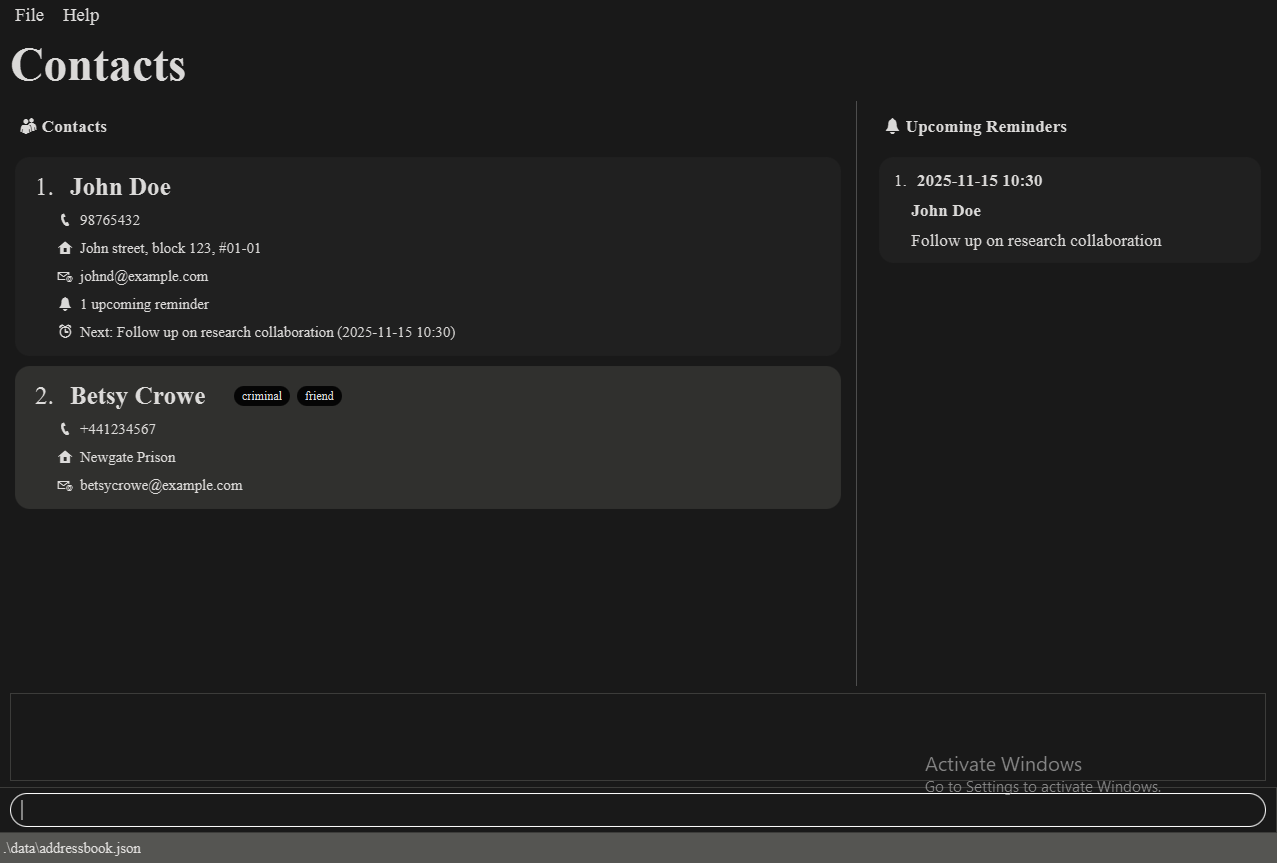
Type commands into the command box and press Enter. Example:
help— opens the help window.list— shows all contacts.add n/John Doe p/98765432 e/johnd@example.com a/NUS— adds John Doe.exit— exits the application.
Tips
Use the
listcommand to confirm the index numbers before using index-based commands likedelete,edit,note,viewNote, andtag.Copy multi-line example commands into a plain-text editor first if you find line-breaks get removed when copying from a PDF.
Features
Notes about the command format:
- Words in
UPPER_CASEare parameters. e.g.add n/NAME→add n/John Doe. - Square brackets
[...]denote optional items. - An ellipsis
…after an item indicates it can appear multiple times (including zero). - Extraneous parameters for no-argument commands (
help,list,exit,clear) are ignored. - If you are using a PDF version of this document, be careful when copying and pasting commands that span multiple lines as space characters surrounding line-breaks may be omitted when copied over to the application.
- Text entered after certain parameters go through a validity check. Entering non-existent prefixes
may cause this check to fail. In which case, the error message will reflect which field failed the validity check.
For example,
add n/John p/123456 y/infowill cause an error reflecting the constraints on phone numbers.
Feature List
Basic
- Adding a person
- Listing all persons
- Deleting a person
- Editing a person
- Adding tags to a person
- Deleting tags from a person
- Locating persons
- Clearing all entries
- Exiting the program
- Viewing help
Notes
Reminders
Adding a person: add
Adds a person to the address book.
Format: add n/NAME [p/PHONE_NUMBER] [e/EMAIL] [a/ADDRESS] [t/TAG]…
Examples:
add n/John                                #Adds a person with only a name
add n/John Doe p/98765432 e/johnd@example.com a/John street, block 123, #01-01
add n/Betsy Crowe t/friend e/betsycrowe@example.com a/Newgate Prison p/+441234567 t/criminal
add n/李明 p/+8613812345678               #Names can contain non-English characters
add n/Dr. Jane Smith-O'Connor            #Names can contain special characters
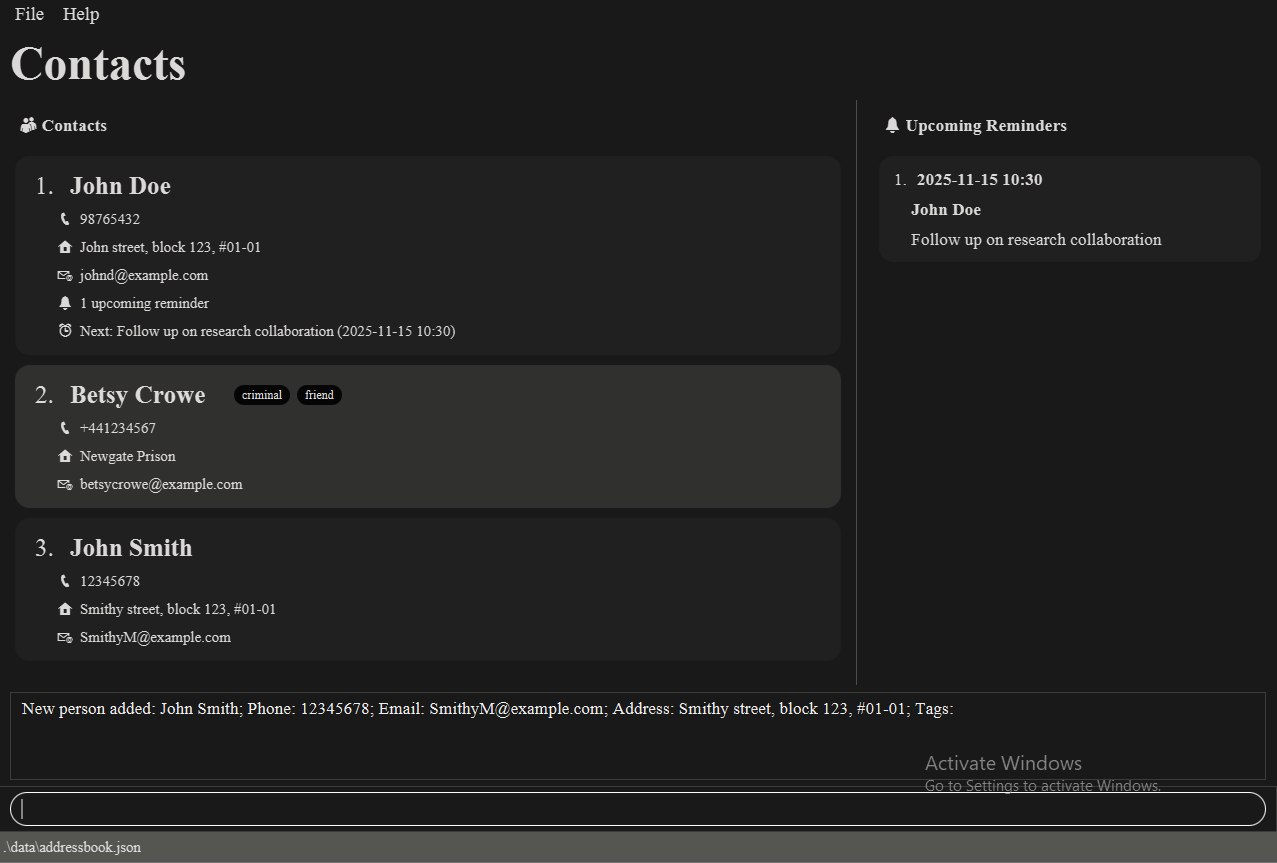
Example expected output on success: New person added: John Doe; Phone: 98765432; Email: johnd@example.com; Address: John street, block 123, #01-01; Tags:
Notes:
- Only the name field is required; all other fields are optional.
- The name can contain any characters (including special characters and numbers).
- Phone numbers can optionally start with a
+for international numbers (e.g.,+6591234567).
Listing all persons: list
Shows a list of all persons in the address book.
Format: list
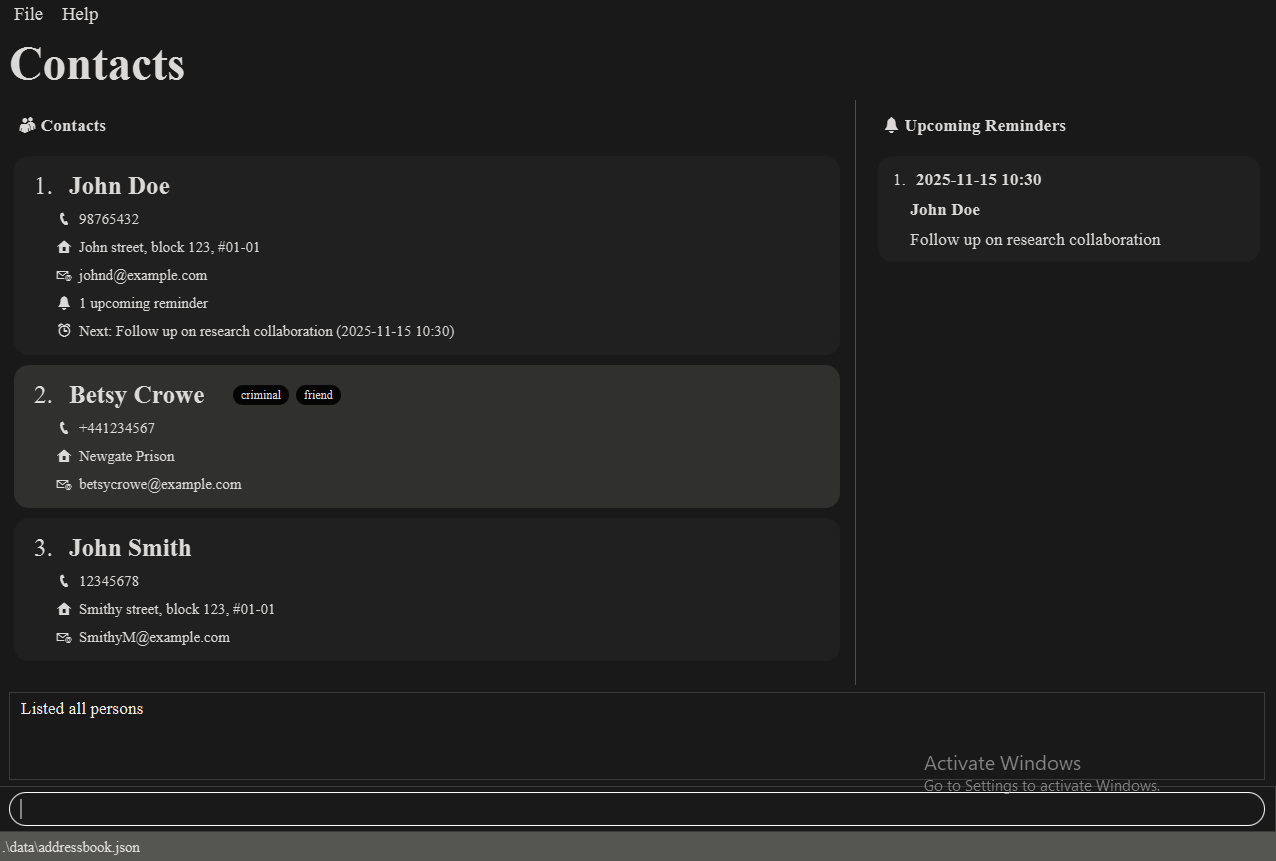
Expected output on success: Listed all persons
Editing a person: edit
Edits an existing person in the address book.
Format: edit INDEX [n/NAME] [p/PHONE] [e/EMAIL] [a/ADDRESS] [t/TAG]…
Examples:
edit 1 p/91234567 e/johndoe@example.com                 # Edits the phone number and email address of the 1st person to
                                                        # be `91234567` and `johndoe@example.com` respectively.

edit 2 n/Betsy Crower t/                # Edits the name of the 2nd person to be `Betsy Crower` and clears all existing
                                        # tags.
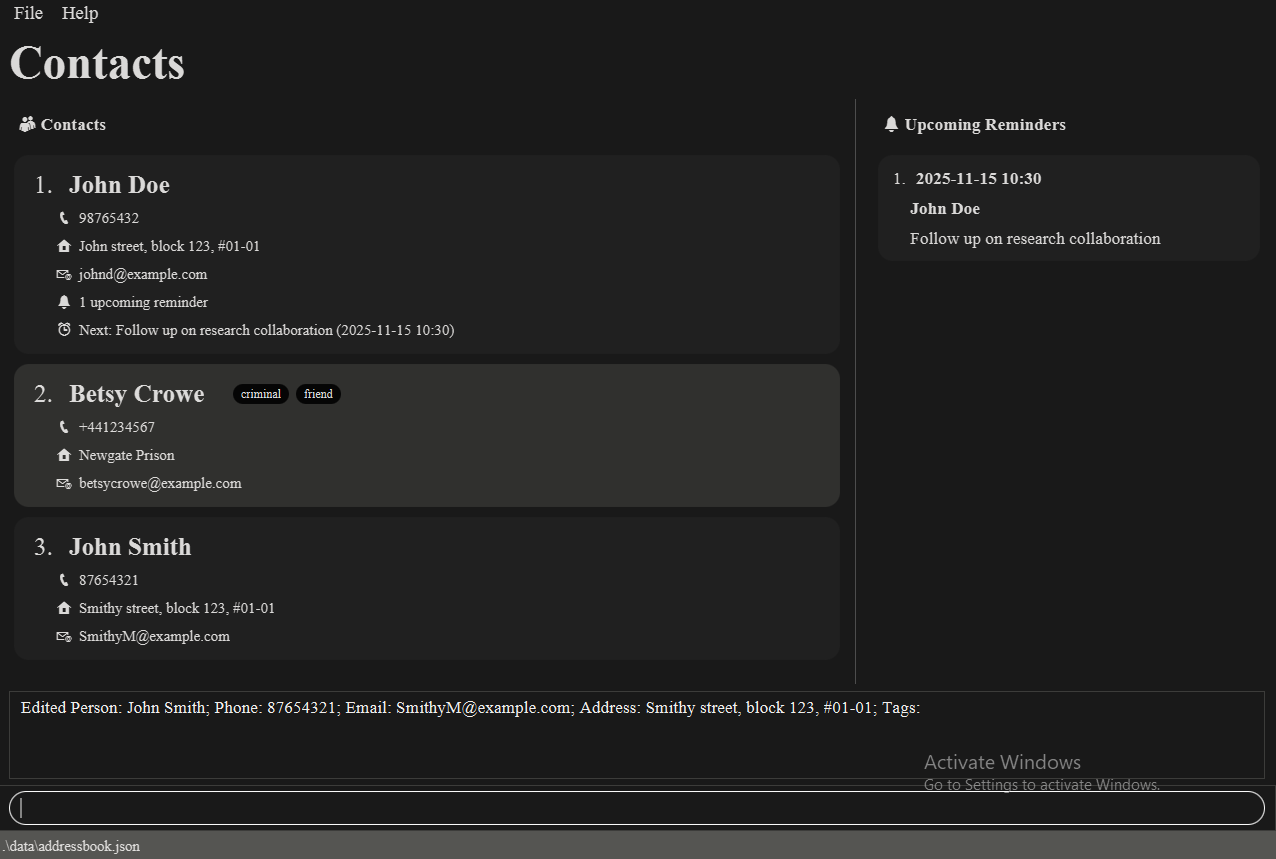
Example expected output on success: New person added: John Smith, Phone: 87654321; Email:SmithyM@example.com; Address:Smithy street, block 123, #01-01; Tags:
Notes:
- Edits the person at the specified
INDEX. The index refers to the index number shown in the displayed person list. - The index must be a positive integer 1, 2, 3, …
- At least one of the optional fields must be provided.
- Existing values will be updated to the input values.
- When editing tags, the existing tags of the person will be removed i.e adding of tags is not cumulative.
- You can remove all the person’s tags by typing
t/without specifying any tags after it.
Deleting a person: delete
Deletes one or more persons from the address book.
Format: delete [INDEX]...
Examples:
delete 2                # deletes the 2nd person in the address book
delete 2 3              # deletes the 2nd and 3rd person in the address book
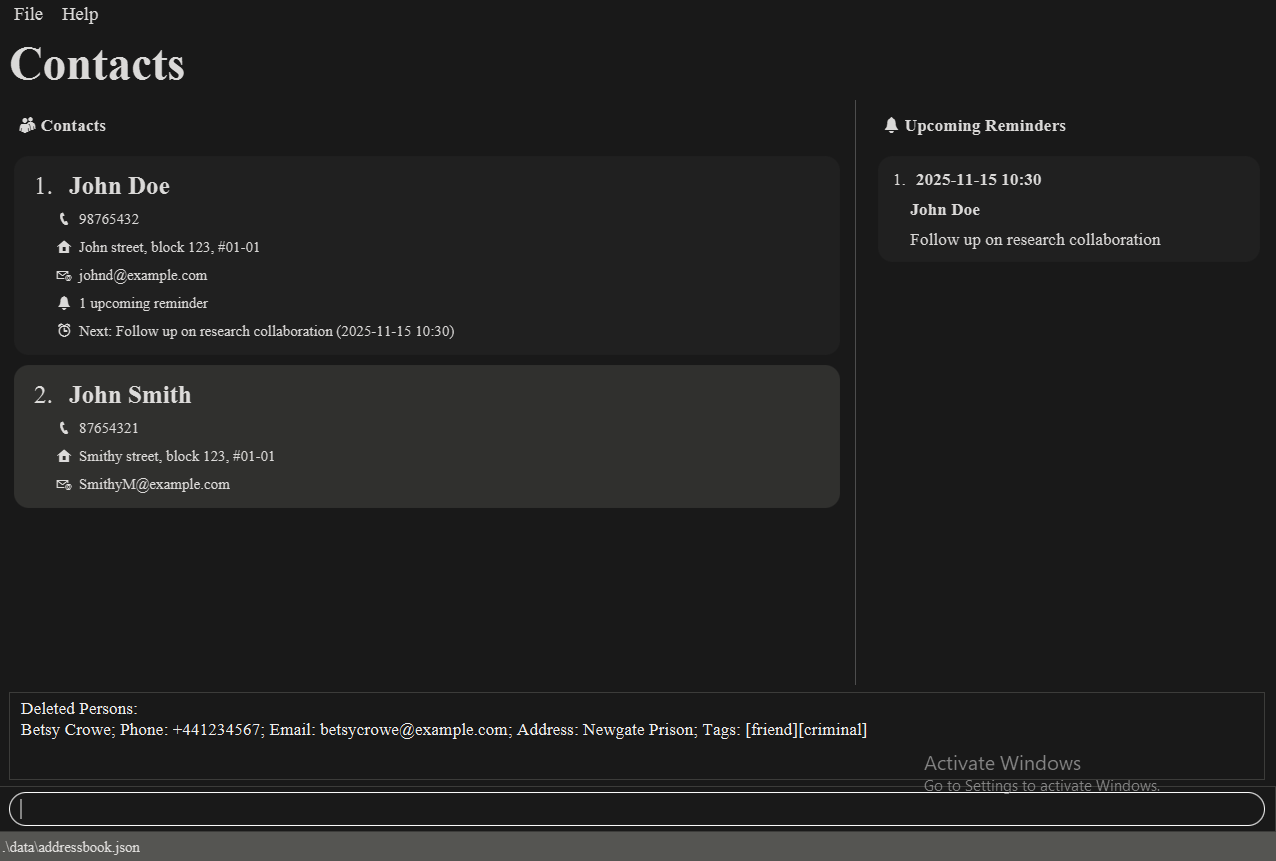
Expected output on success: Deleted Persons: Betsy Crowe; Phone: +441234567; Email: betsycrowe@example.com; Address: Newgate Prison; Tags:[friend][criminal]
Notes:
- Deletes the person at the specified
INDEX. - The index (or indexes) refers to the index number shown in the displayed person list.
- The index (or indexes) must be a positive integer 1, 2, 3, …
- Duplicate indexes are ignored.
- When a person is deleted, all of their associated reminders (including completed and past reminders) are also automatically deleted. The success message will confirm the total number of reminders that were removed.
Adding tags to a person: tag
Adds one or more tags to an existing person in the address book.
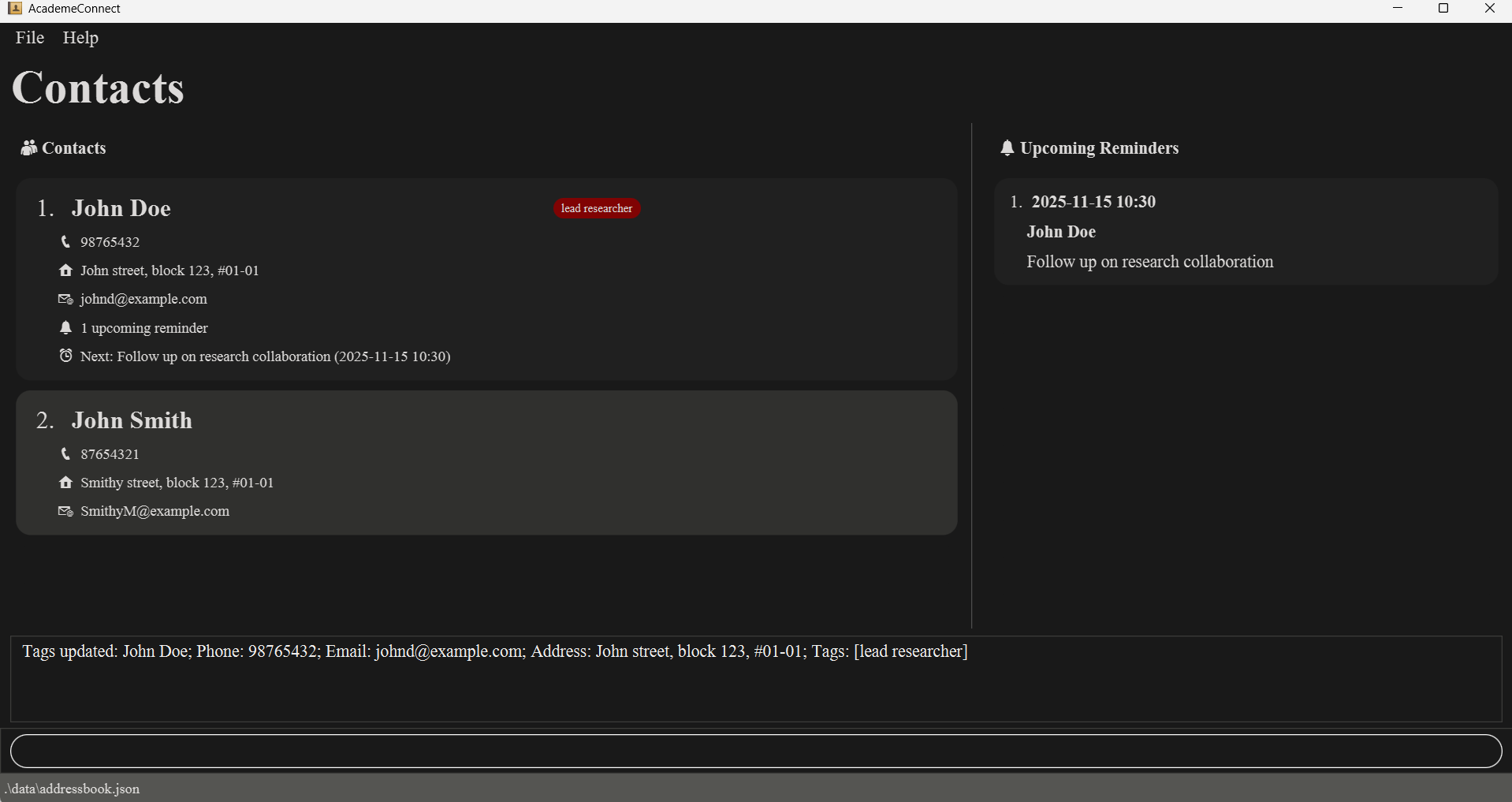
To reflect your contacts' research topics or job titles,
you can choose to add research tags and title tags by using different prefixes rtt/ or jtt/,
instead of t/ (see below).
These tags are displayed with a different colour than other tags.
Format: tag INDEX t/TAG [t/MORE_TAGS]…
Examples:
tag 1 t/friend                      # Adds the tag `friend` to the 1st person.
tag 1 jtt/lead researcher           # Adds the title tag 'lead researcher' to the 1st person.
tag 2 t/colleague t/cs2103t         # Adds both `colleague` and `cs2103t` tags to the 2nd person.
tag 2 rtt/AI                        # Adds the research tag 'AI' to the 2nd person.
Example expected output on success: Tags updated: John Doe; Phone: 98765432; Email:johnd@example.com; Address:John street, block 123, #01-01, Tags:[lead researcher]
Notes:
- Adds tag(s) to the person at the specified
INDEX. - The index refers to the index number shown in the displayed person list.
- The index must be a positive integer 1, 2, 3, …
- Tags are added cumulatively - existing tags are preserved.
- You can add multiple tags in a single command.
- Tag suggestions: As you type after
t/, the application will suggest existing tags that match your input. PressTabto autocomplete the suggestion. - Research tags (
rtt/) and job title tags (jtt/) are tag displayed with distinct colors to help you visually distinguish research topics and job titles from other tags. They function identically to normal tags for searching and storage.
Deleting tags from a person: tagdel
Deletes one or more tags from an existing person in the address book.
You can delete specific tags or all tags of a certain type (research or title).
Format: tagdel INDEX [t/TAG]…
Examples:
tagdel 1 t/friend                     # Deletes the tag `friend` from the 1st person.
tagdel 2 t/colleague t/cs2103t        # Deletes both `colleague` and `cs2103t` tags from the 2nd person.
Example expected output on success: Tag(s) deleted: John Doe; Phone: 98765432; Email:johnd@example.com; Address:John street, block 123, #01-01, Tags:[lead researcher]
Notes:
- Deletes tag(s) from the person at the specified
INDEX. - The index refers to the index number shown in the displayed person list.
- The index must be a positive integer 1, 2, 3, …
- You can delete multiple tags in a single command.
Adding or updating a note: note
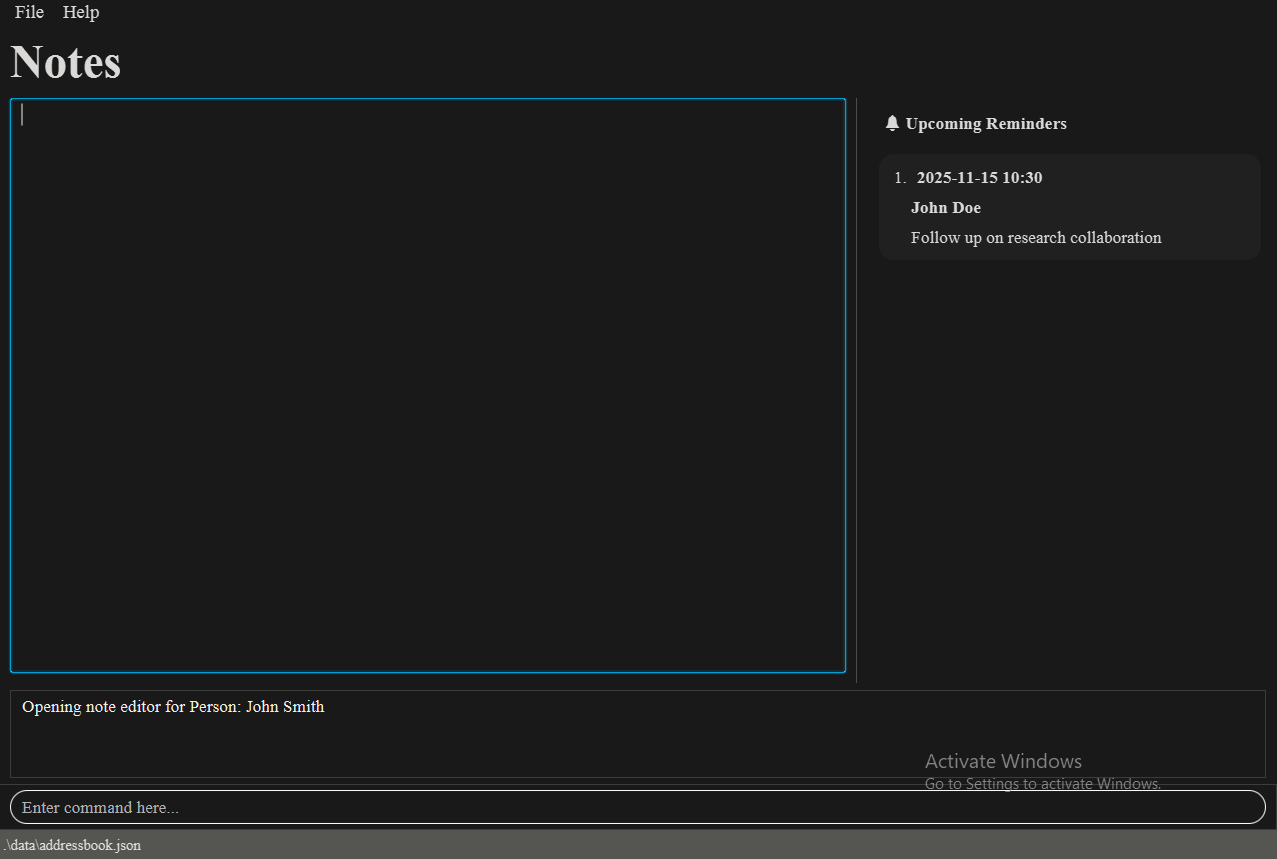
Opens a note editor for the person at the given index in the currently displayed list. The editor is a text box that replaces the person list. Use Esc to toggle back to the command box, which automatically saves the note to storage.
See below for a sample image and exact behaviour of the editor.
Format: note INDEX
Examples:
note 2 # opens the note editor for the 2nd person
Expected output on success: Opening text editor for Person: John Smith
Behavior of note editor:
- The command
note INDEXopens the note editor, pre-populated with the person’s existing note (if any). After running the command, you will be focused on the editor (able to edit the note). - Press Esc to toggle between the command box and the note editor.
- Pressing Esc while the editor is focused saves the edited note into the application's in-memory model and shifts focus to the command box.
- Pressing Esc while the command box is focused returns focus to the note editor. You can continue to edit the note.
- When focused on the command box, navigating away (for example, running
list) removes the text editor and returns the UI to the person list. The note saved will reflect the most recent update.
Notes:
- Editor supports text wrapping and vertical scrolling.
- Maximum note length: 5000 characters. Attempts to exceed this will be rejected by the editor.
- Opens the note editor of the person at the specified
INDEX. - The index refers to the index number shown in the displayed person list.
- The index must be a positive integer 1, 2, 3, …
Viewing a note: viewNote
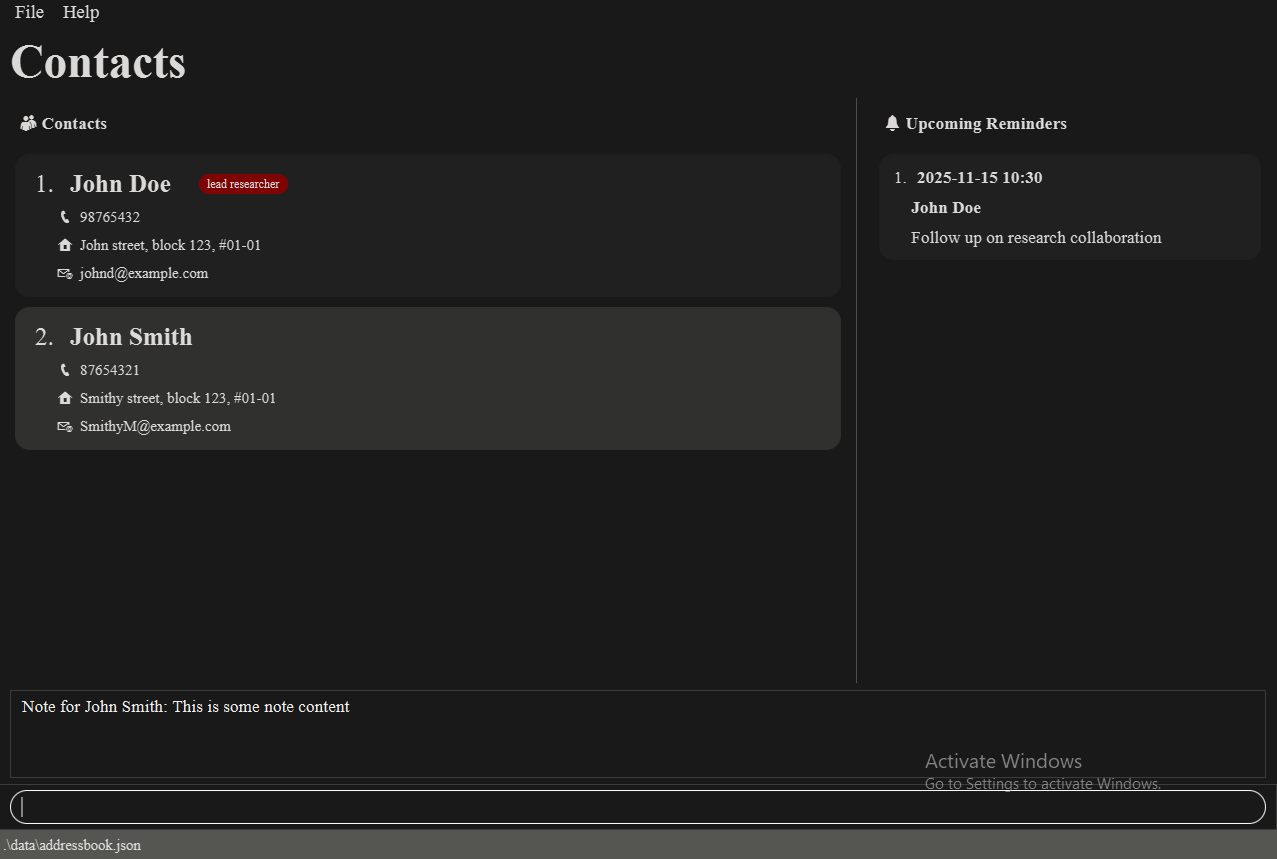
Displays a person's note in the result area (read-only). Refer to 'note' command to edit.
Format: viewNote INDEX
Examples:
viewNote 2 # displays note of the 2nd person
Example expected output on success: Note for John Smith: This is some note content
Notes:
- Displays the note of the person at the specified
INDEX. - The index refers to the index number shown in the displayed person list.
- The index must be a positive integer 1, 2, 3, …
Deleting a note: deleteNote
Deletes a person's note.
Format: deleteNote INDEX
Examples:
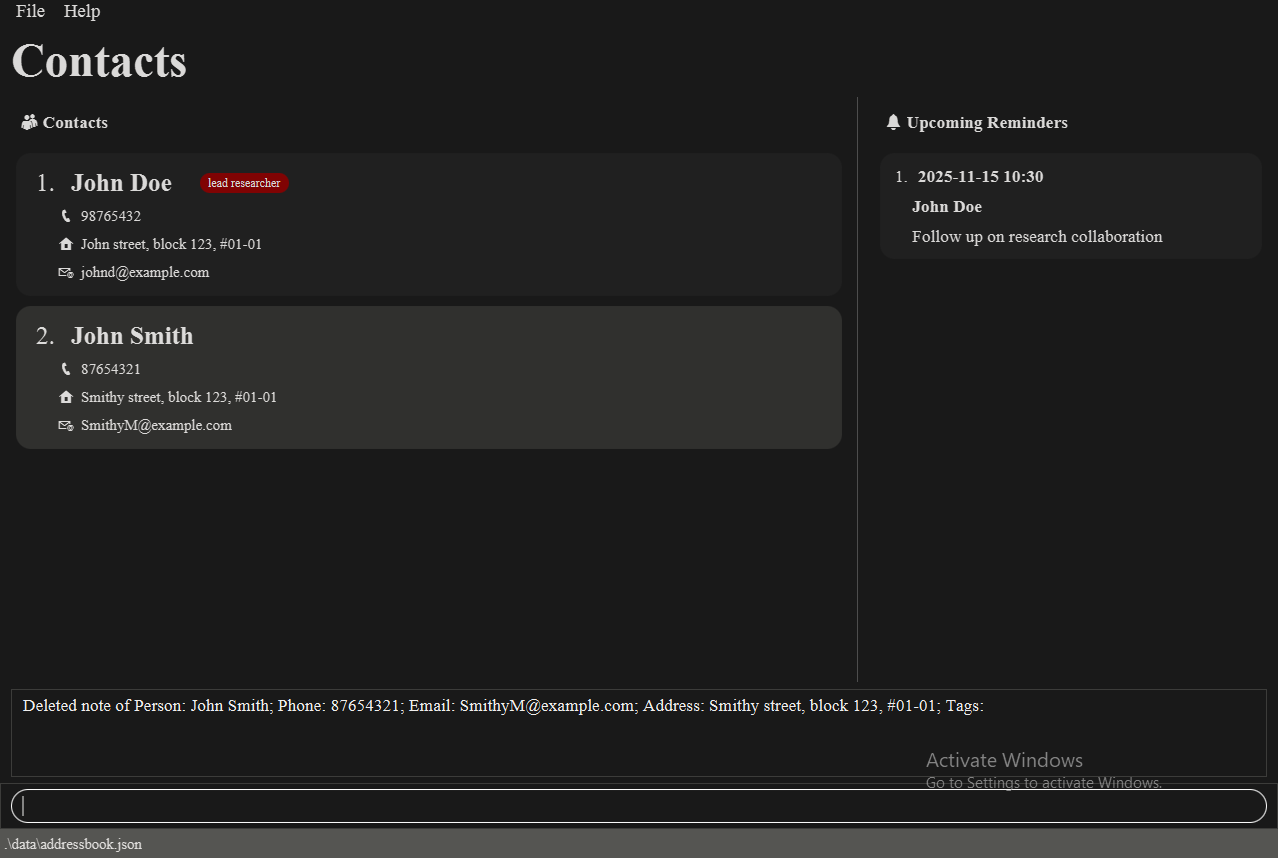
deleteNote 2 # deletes the note of the 2nd person
Expected output on success: Deleted note of Person: John Smith; Phone 8765432; Email: SmithyM@example.com; Address: Smithy Street, block 123, #01-01 Tags:
Notes:
- Deletes the note of the person at the specified
INDEX. - The index refers to the index number shown in the displayed person list.
- The index must be a positive integer 1, 2, 3, …
Locating persons: find
You can choose between 3 search methods: by name, by tag, or by note content.
Searching by name displays every person whose name contains any of the given keywords.
Searching by tag displays every person who has been assigned any of the specified tags.
Searching by note displays every person whose note contains the search phrase.
Format: find KEYWORD [MORE_KEYWORDS] OR find t/TAG_NAME [t/MORE_TAG_NAMES] OR find note/SEARCH_PHRASE
Examples:
find John                       # returns `john` and `John Doe`
find alex david                 # returns `Alex Yeoh`, `David Li`
find t/friends                  # returns everyone tagged as `friends`
find t/friends t/colleagues     # returns everyone tagged as `friends` or `colleagues`
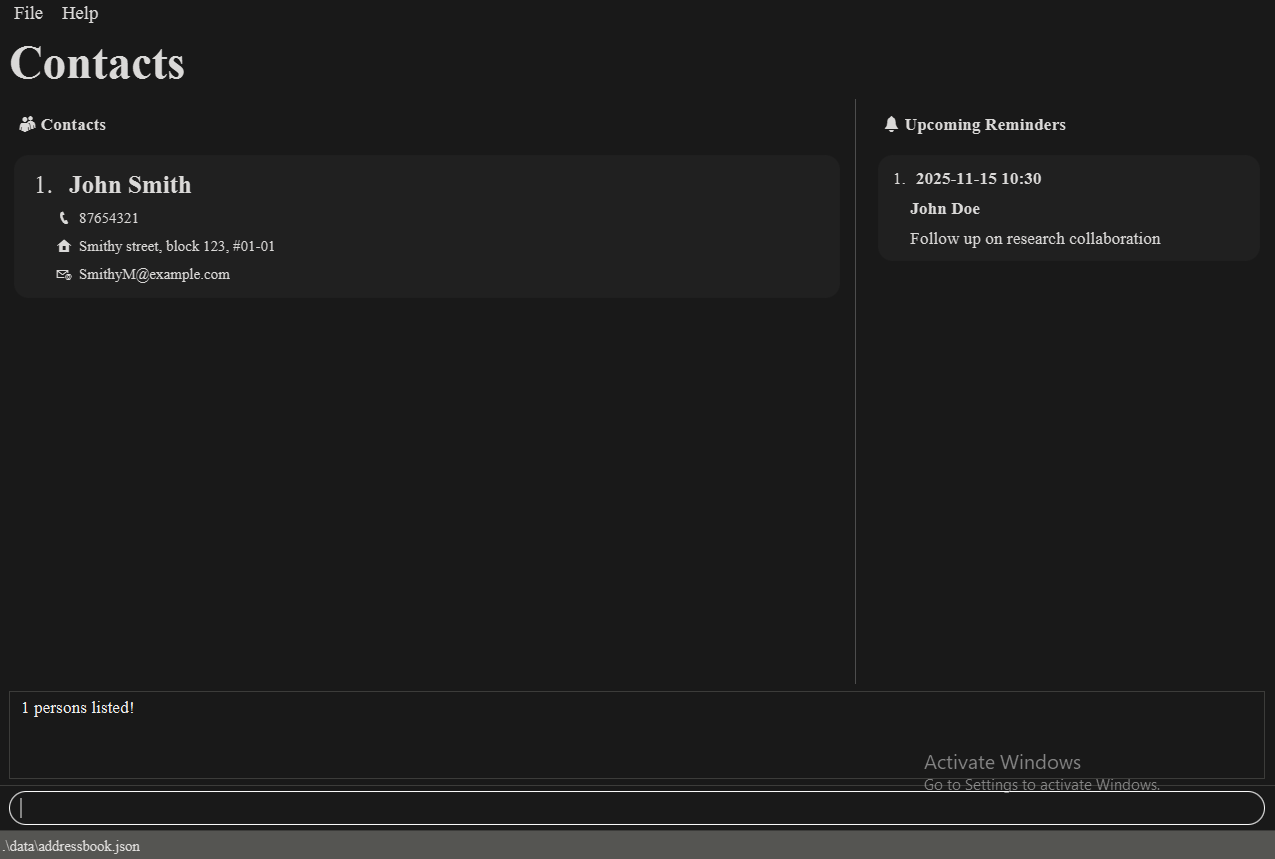
find note/Met at conference     # returns everyone who has the phrase "Met at conference" in their notes
Expected output on success: 1 persons listed!
Notes:
- The search is case-insensitive. e.g
hanswill matchHans - The order of the keywords does not matter. e.g.
Hans Bowill matchBo Hans - Only search by one of name, tag, or note
- Searching by tag is sensitive to tag type. For example, job title tag named 'friend' will not be the same as regular 'friend' tag.
- For name and tag search, only full words will be matched e.g.
Hanwill not matchHans - Persons matching at least one keyword will be returned (i.e.
ORsearch). e.g.Hans Bowill returnHans Gruber,Bo Yang
Adding a reminder: reminder add
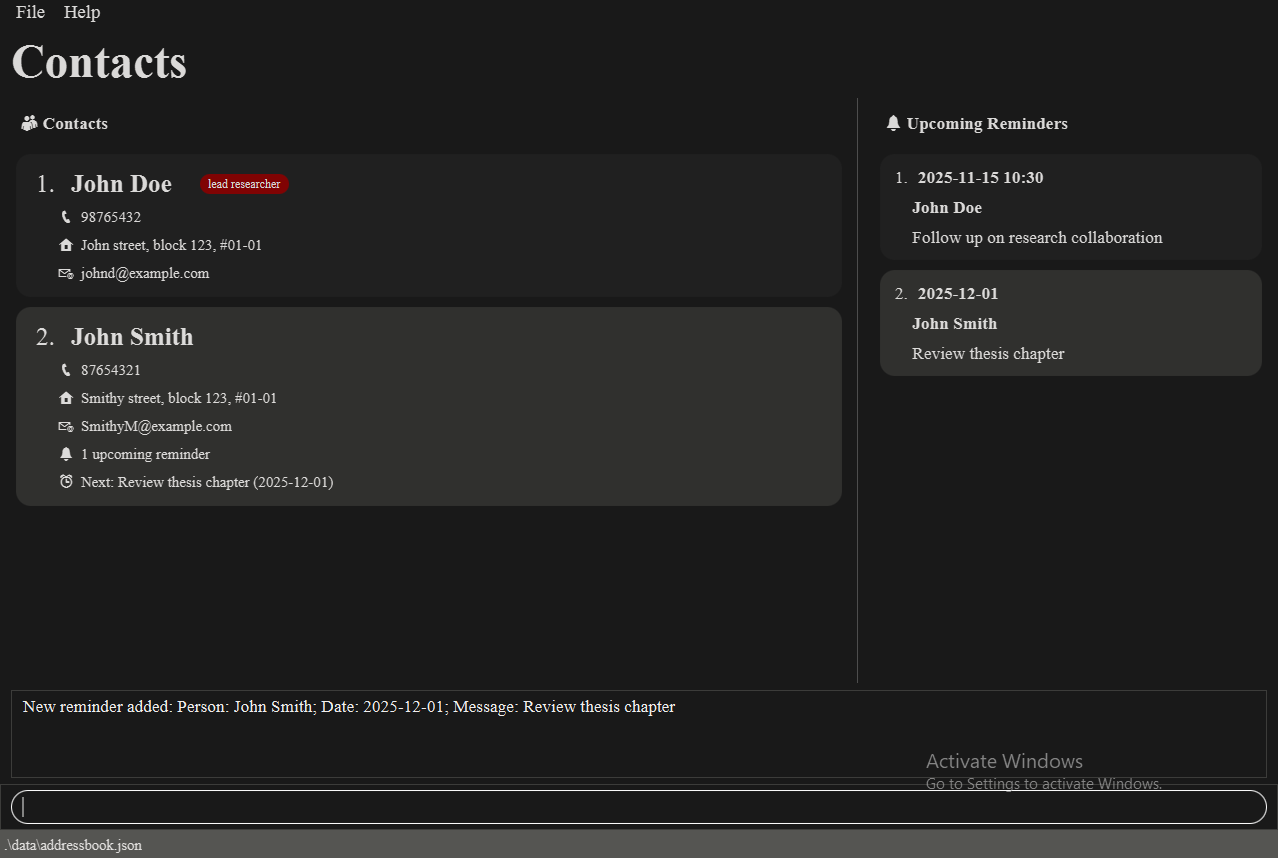
Adds a reminder for a person in the address book. Reminders help you track follow-ups, meetings, or important dates associated with your contacts. Added reminders automatically appear in the Upcoming Reminders panel on the right side of the application.
Format: reminder add n/NAME d/DATE m/MESSAGE OR reminder add INDEX d/DATE m/MESSAGE
Examples:
reminder add n/John Doe d/2025-11-15 10:30 m/Follow up on research collaboration
reminder add 1 d/15/11/2025 14:00 m/Coffee meeting at NUS
reminder add n/Jane Smith d/2025-12-01 m/Send conference paper draft
reminder add 2 d/01/12/2025 m/Review thesis chapter
Example expected output on success: New reminder added: John Smith; Date: 2025-12-01; Message: Review thesis chapter
Notes:
- You can specify the person either by
n/NAME(exact match required) or byINDEXfrom the displayed person list.- When using
n/NAME, the application searches your entire address book. This means that you can add a reminder for someone that is not visible on the currently displayed contact list - When using
INDEX, it refers to the index number in the currently displayed contact list.
- When using
- The
INDEXmust be a positive integer 1, 2, 3, … - Date formats supported:
yyyy-MM-dd HH:mm(e.g.,2025-11-15 10:30)dd/MM/yyyy HH:mm(e.g.,15/11/2025 10:30)yyyy-MM-dd(e.g.,2025-11-15) - defaults to end of daydd/MM/yyyy(e.g.,15/11/2025) - defaults to end of day
- Time is optional. If not provided, the reminder will default to the end of the day for the specified date.
- Reminders created with a date in the past will be saved, but will not be displayed in the
Upcoming Reminderspanel. - Only 24-hour time format is allowed.
- Messages can contain any text to describe the reminder purpose.
- Duplicate reminders (same person, date, and message) cannot be added.
- The application automatically displays upcoming reminders in the right panel, sorted by date.
Listing upcoming reminders: reminder list
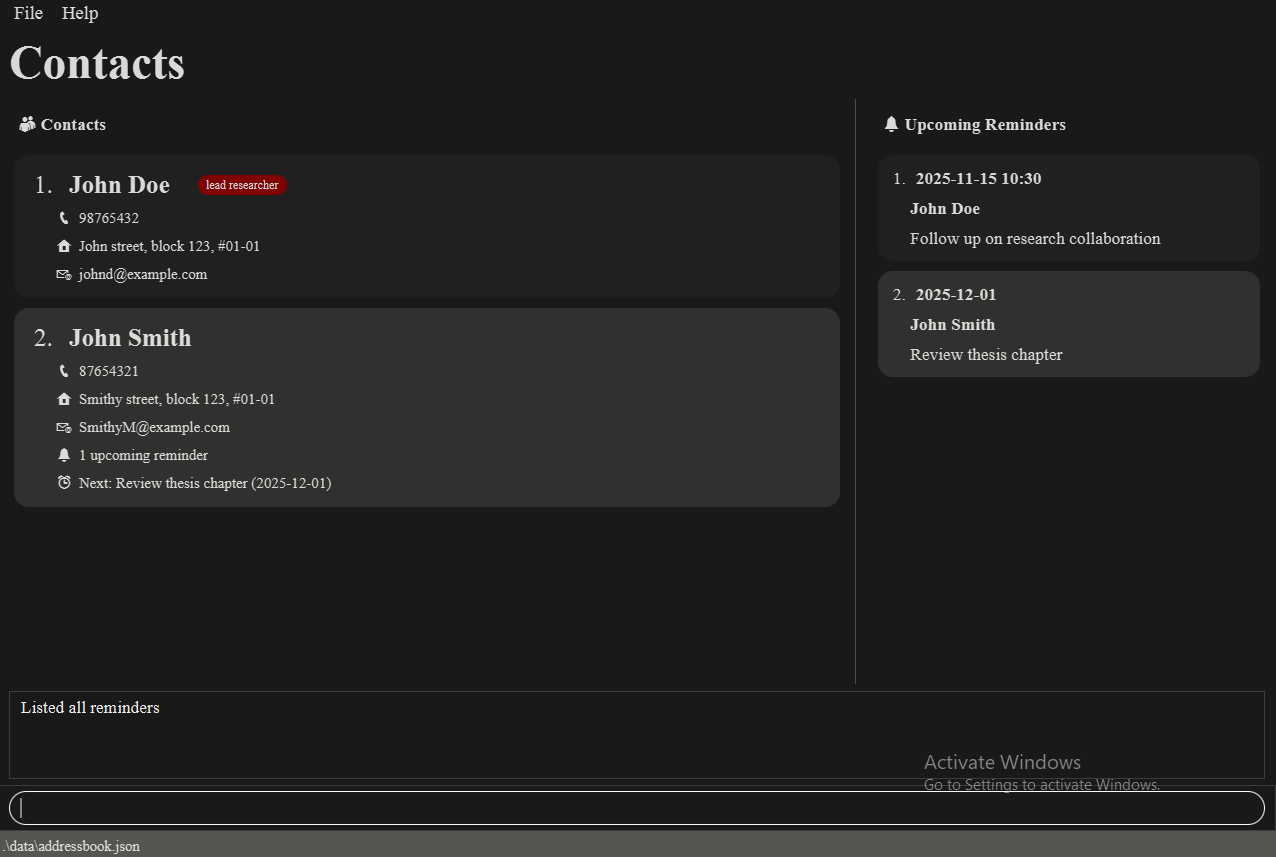
Displays all incomplete reminders that are upcoming in the Upcoming Reminders panel. This command is useful for refreshing the reminder view or checking all pending reminders at once.
Format: reminder list
Expected output on success: Listed all reminders
Notes:
- Shows all reminders that are:
- Not marked as complete
- Have a due date in the future or today
- Reminders are automatically sorted by date (earliest first)
- The Upcoming Reminders panel on the right side of the application always shows these reminders
- Use this command to refresh the reminder view if needed
- Completed reminders are hidden from this view - use
reminder mark INDEXto mark reminders as complete
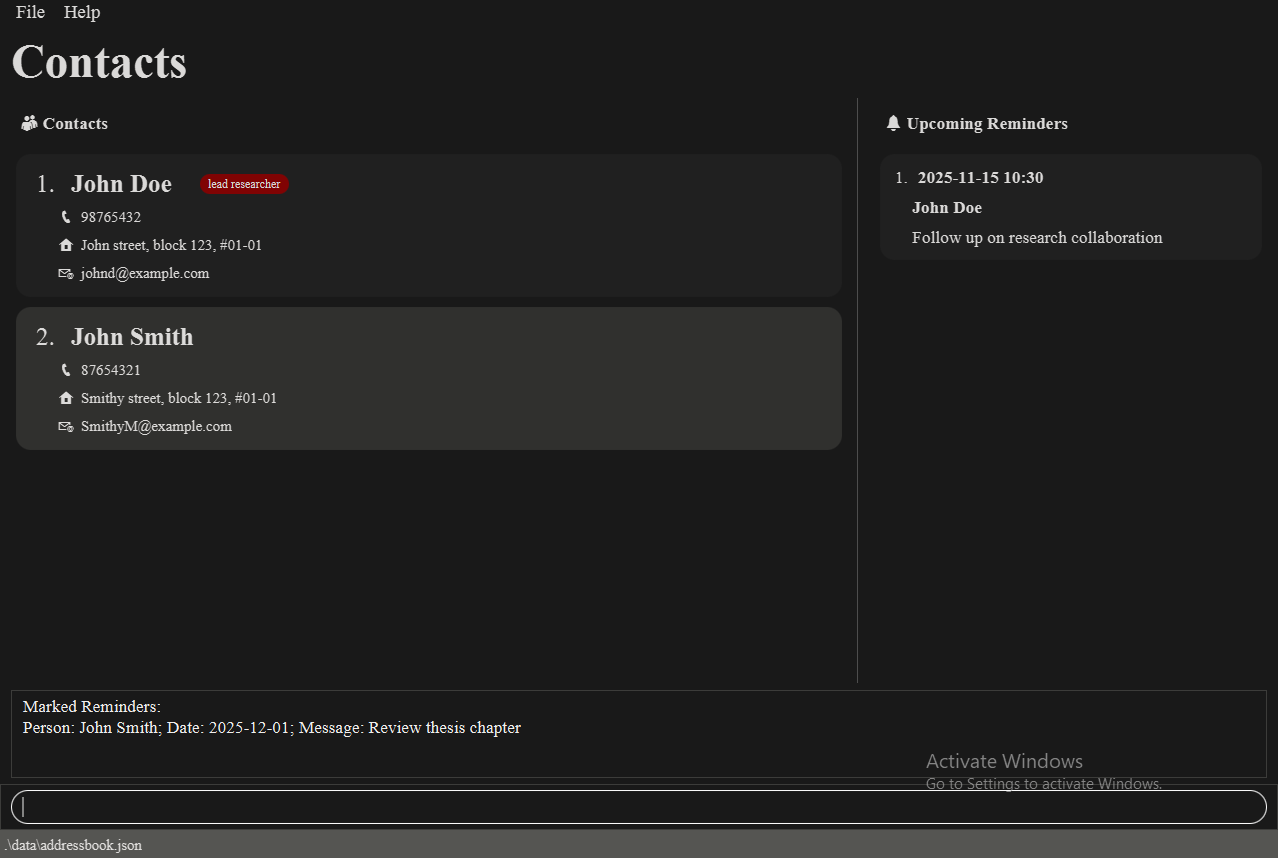
Marking a reminder as complete: reminder mark
Marks one or more reminders as complete, removing them from the Upcoming Reminders panel. This helps you track which follow-ups you have already handled.
Format: reminder mark INDEX [MORE_INDEXES]...
Examples:
reminder mark 1                # marks the 1st reminder as complete
reminder mark 1 4 6            # marks the 1st, 4th, and 6th reminders as complete
Example expected output on success:
Marked Reminders:
Person: John Smith; Date: 2025-12-01; Message: Review thesis chapter
Notes:
- Marks the reminder(s) at the specified
INDEX(orINDEXES) as complete. - The index refers to the index number shown in the Upcoming Reminders panel.
- The index must be a positive integer 1, 2, 3, …
- You can mark multiple reminders in a single command.
- Once marked as complete, the reminder will no longer appear in the Upcoming Reminders panel.
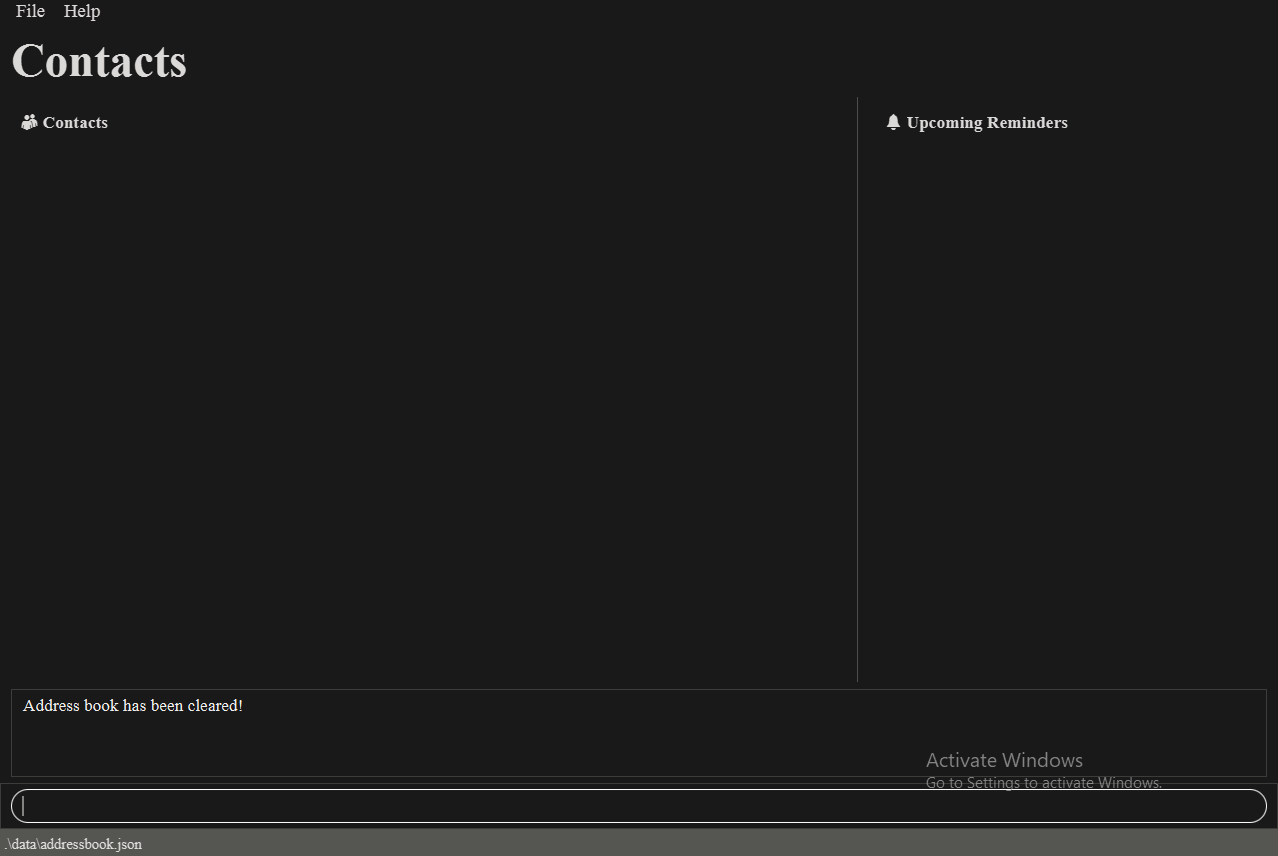
Clearing all entries: clear
Clears all entries from the address book.
Format: clear
Expected output on success: 'Address book has been cleared!'
Exiting the program: exit
Exits the program.
Format: exit
Viewing help: help
Shows a message explaining how to access the help page.

Format: help
Saving the data
Data is saved automatically after any command that modifies the address book. Data file location:
[JAR file location]/data/addressbook.json.
Editing the data file
AddressBook data are saved automatically as a JSON file [JAR file location]/data/addressbook.json. Advanced users are
welcome to update data directly by editing that data file.
Furthermore, certain edits can cause the AddressBook to behave in unexpected ways (e.g., if a value entered is outside the acceptable range). Therefore, edit the data file only if you are confident that you can update it correctly.
Archiving data files [coming in v2.0]
Details coming soon ...
FAQ
Q: How do I transfer my data to another Computer?
A: Install the app in the other computer and overwrite the empty data file it creates with the file that contains
the data of your previous AddressBook home folder.
Known issues
- When using multiple screens, if you move the application to a secondary screen, and later switch to using only
the primary screen, the GUI will open off-screen. The remedy is to delete the
preferences.jsonfile created by the application before running the application again. - On some devices, the default window size might be too small and the GUI will cut off certain fields with
.... The remedy is to maximise the window or resize it until the data is visible. - If you minimize the Help Window and then run the
helpcommand (or use theHelpmenu, or the keyboard shortcutF1) again, the original Help Window will remain minimized, and no new Help Window will appear. The remedy is to manually restore the minimized Help Window.
Command summary
| Action | Format, Examples |
|---|---|
| Add | add n/NAME p/PHONE_NUMBER e/EMAIL a/ADDRESS [t/TAG]… e.g., add n/James Ho p/22224444 e/jamesho@example.com a/123, Clementi Rd t/friend t/colleague |
| Clear | clear |
| Delete | delete INDEX [MORE_INDEXES]e.g., delete 3 |
| Edit | edit INDEX [n/NAME] [p/PHONE_NUMBER] [e/EMAIL] [a/ADDRESS] [t/TAG]…e.g., edit 2 n/James Lee e/jameslee@example.com |
| Find | find KEYWORD [MORE_KEYWORDS]e.g., find James Jake |
| List | list |
| Help | help |
| Tag | tag INDEX t/TAG [t/MORE_TAGS]…e.g., tag 1 t/friend t/colleague |
| Delete Tag | tagdel INDEX t/TAG [t/MORE_TAGS]…e.g., tagdel 1 t/friend t/colleague |
| Note | note INDEX |
| View Note | viewNote INDEX |
| Delete Note | deleteNote INDEX |
| Add Reminder | reminder add n/NAME d/DATE m/MESSAGE OR reminder add INDEX d/DATE m/MESSAGEe.g., reminder add 1 d/2025-11-15 10:30 m/Follow up on project |
| List Reminders | reminder list |
| Mark Reminder | reminder mark INDEX [MORE_INDEXES]...e.g., reminder mark 1 3 |